
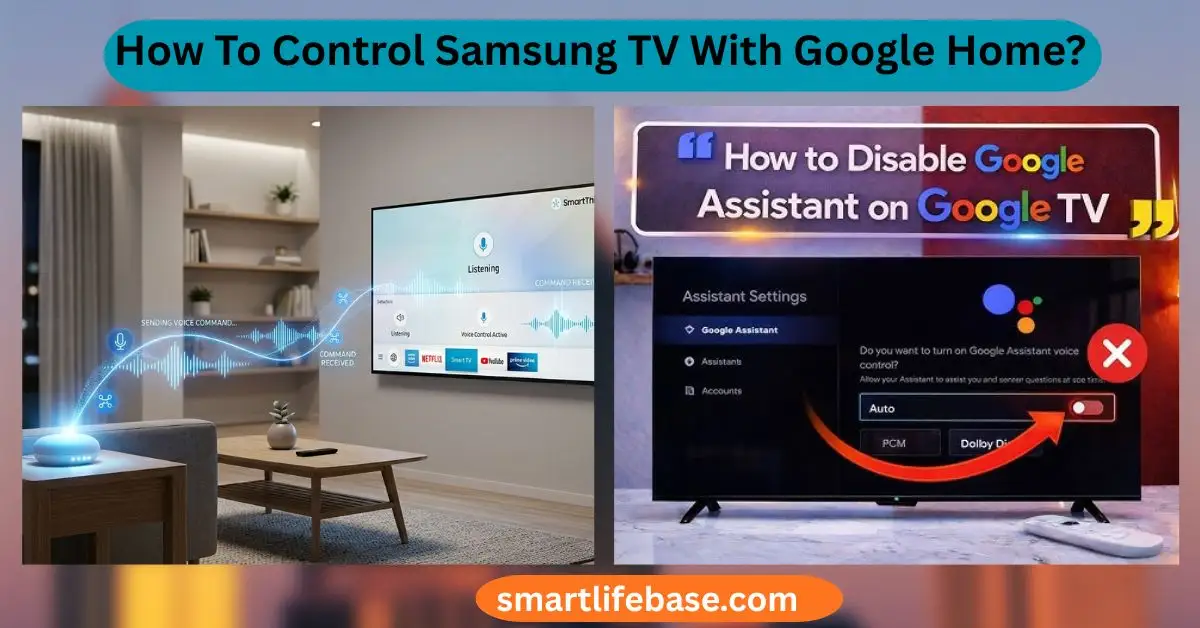
How To Control Samsung Tv With Google Home? Get quick setup steps, voice command examples, and fixes—set up in minutes for smooth, hands-free streaming. Link SmartThings to Google Home, then control your Samsung TV with voice. You want quick, reliable voice control. You also want simple steps that work on real TVs in real homes.
I’ve set up many Samsung models for clients and in my own living room. This guide shows how to control a Samsung TV with Google Home from start to finish, with clear steps, fixes, and pro tips you can trust.

How Samsung TV control works with Google Home
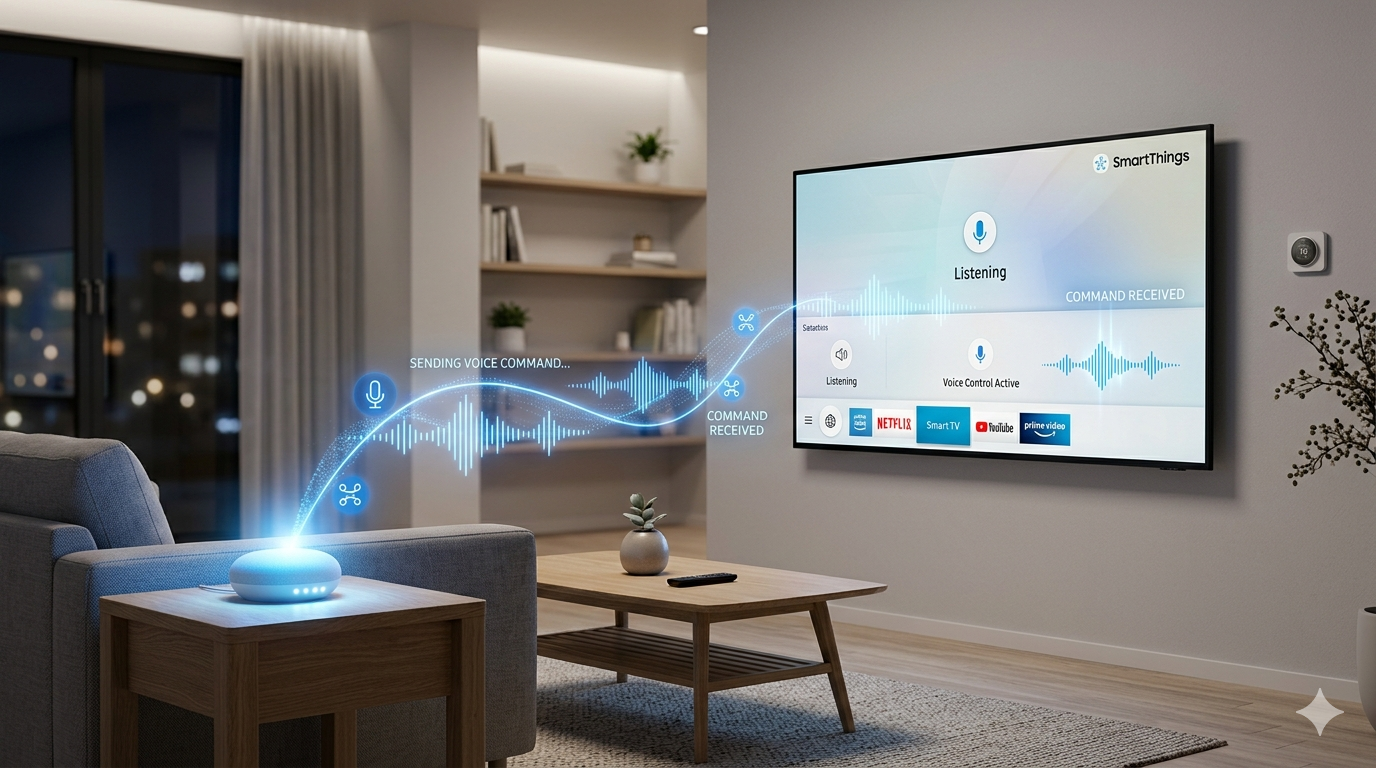
Samsung TVs run on Tizen and connect to the SmartThings cloud. Google Home talks to SmartThings through an official link. Your voice command goes to Google Assistant. Google sends it to SmartThings. SmartThings sends it to your TV.
Why this matters: You do not need a SmartThings hub for most TVs. The TV itself is the device. You only need your Samsung account, the SmartThings app, and the Google Home app.
This guide explains how to control a Samsung TV with Google Home. using that link. It also covers add-ons like Chromecast for richer playback control.
Compatibility and requirements
Before you start, check these basics:
- Supported TV models. Most 2018 or newer Samsung Smart TVs work with SmartThings. Some older sets work too, but features can be limited.
- Updated software. Update your TV firmware, SmartThings app, and Google Home app.
- Accounts ready. You need a Samsung account and a Google account.
- Same home, same region. Use the same country settings across accounts and apps.
- Network access. Keep the TV on your home Wi‑Fi or Ethernet. For wake over the network, enable the right TV setting.
Optional for deeper control:
- A Chromecast or Chromecast with Google TV for casting and app-specific media commands.
- HDMI-CEC (Anynet+) is enabled on the TV if you want Chromecast to power on the TV.
People ask How To Control Samsung TV with Google Home? without extra devices. The answer is: link SmartThings to Google Home. It works for power, volume, input, and more.
Step-by-step setup
Follow these steps in order. It takes 10 minutes.
- Prepare your Samsung TV
- Turn on the TV and connect it to your Wi‑Fi or Ethernet.
- Sign in with your Samsung account on the TV.
- Open Settings. Go to General. Go to Network. Then Expert Settings.
- Turn on Power On with Mobile or similar options like IP Remote or Wake on LAN if available. Names vary by model.
- Add your TV to SmartThings
- Open the SmartThings app on your phone.
- Tap the plus icon. Tap Device. Choose TV, then Samsung.
- Follow the prompts. Pick your TV. Confirm on the TV screen if asked.
- Rename the TV to a simple room name. Example: Living Room TV.
- Link SmartThings to Google Home
- Open the Google Home app.
- Tap the plus icon. Tap Set up device.
- Tap Works with Google. Search for SmartThings.
- Sign in with the same Samsung account used on the TV.
- Allow access and choose your SmartThings Location.
- Select your TV and assign it to a room.
- Test basic voice control
- Say: Hey Google, turn on Living Room TV. If power-on fails, see the fixes below.
- Say: Hey Google, set Living Room TV volume to 15.
- Say: Hey Google, switch Living Room TV to HDMI 1.
If you asked How To Control Samsung TV with Google Home? and needed one path, this is it.

Voice commands you can use
Once linked, try these useful commands:
- Power
- Hey Google, turn on Living Room TV.
- Hey Google, turn off Living Room TV.
- Volume and mute
- Hey Google, volume up on the Living Room TV.
- Hey Google, set Living Room TV volume to 12.
- Hey Google, mute Living Room TV.
- Input and channels
- Hey Google, switch Living Room TV to HDMI 2.
- Hey Google, change channel to 507 on Living Room TV. Note: this can depend on your tuner or set-top box.
- Playback
- Hey Google, pause Living Room TV.
- Hey Google, play on Living Room TV.
- Hey Google, stop Living Room TV.
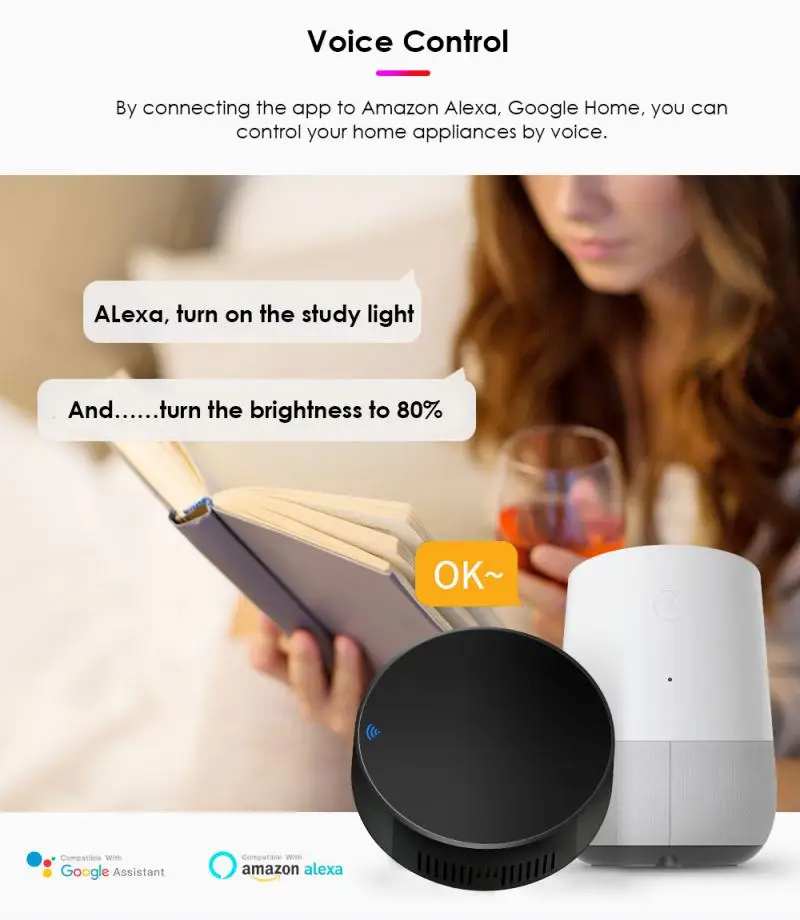
App launching varies by model and region. If you want natural requests like Play YouTube videos on the TV, add a Chromecast. Then say: Hey Google, play cat videos on YouTube on Living Room TV.
These examples show How To Control Samsung Tv With Google Home in daily life. They keep things fast and easy.
Automations and routines
You can trigger the TV with routines. Here is how:
- In Google Home, create a routine.
- Example: Good morning. Actions: Turn on the Living Room TV. Set volume to 10. Switch input to HDMI 1.
- In SmartThings, create a Scene.
- Example: Movie Time. Actions: Switch to HDMI 2. Set picture mode to Movie. Lower volume to 8.
- Expose the Scene to Google Home during the SmartThings linking step. Then say: Hey Google, activate Movie Time.
These small routines make How to Control Samsung TV with Google Home? feel natural. Your home follows your day without taps.

Troubleshooting common issues
Power on does not work
- Enable Power On with Mobile or IP Remote in TV settings.
- Use Ethernet or keep Wi‑Fi on when the TV is off.
- Some models only support power-off over the cloud. Add a Chromecast with CEC for reliable power-on.
TV not showing in Google Home
- Make sure the TV is added to SmartThings first.
- Re-link SmartThings under Works with Google.
- Use the same Samsung account for the TV and SmartThings.
Commands are slow or fail
- Check the internet on the TV and your phone.
- Update the TV firmware and both apps.
- Use short device names. Example: Living Room TV.
Input change does not work
- Verify devices are plugged in and on.
- Rename HDMI inputs in the TV so they are easy to find.
If you still wonder How To Control Samsung Tv With Google Home, run through these checks. Most failures are simple setup gaps.

Privacy, security, and limits
Be smart about account security:
- Turn on two-factor authentication for both Samsung and Google.
- Use strong, unique passwords.
- Limit who has access to your Google Home.
Understand the limits:
- Power-on via cloud can be limited by model and energy-saving modes.
- Launching specific apps by voice may not work on all TVs through SmartThings.
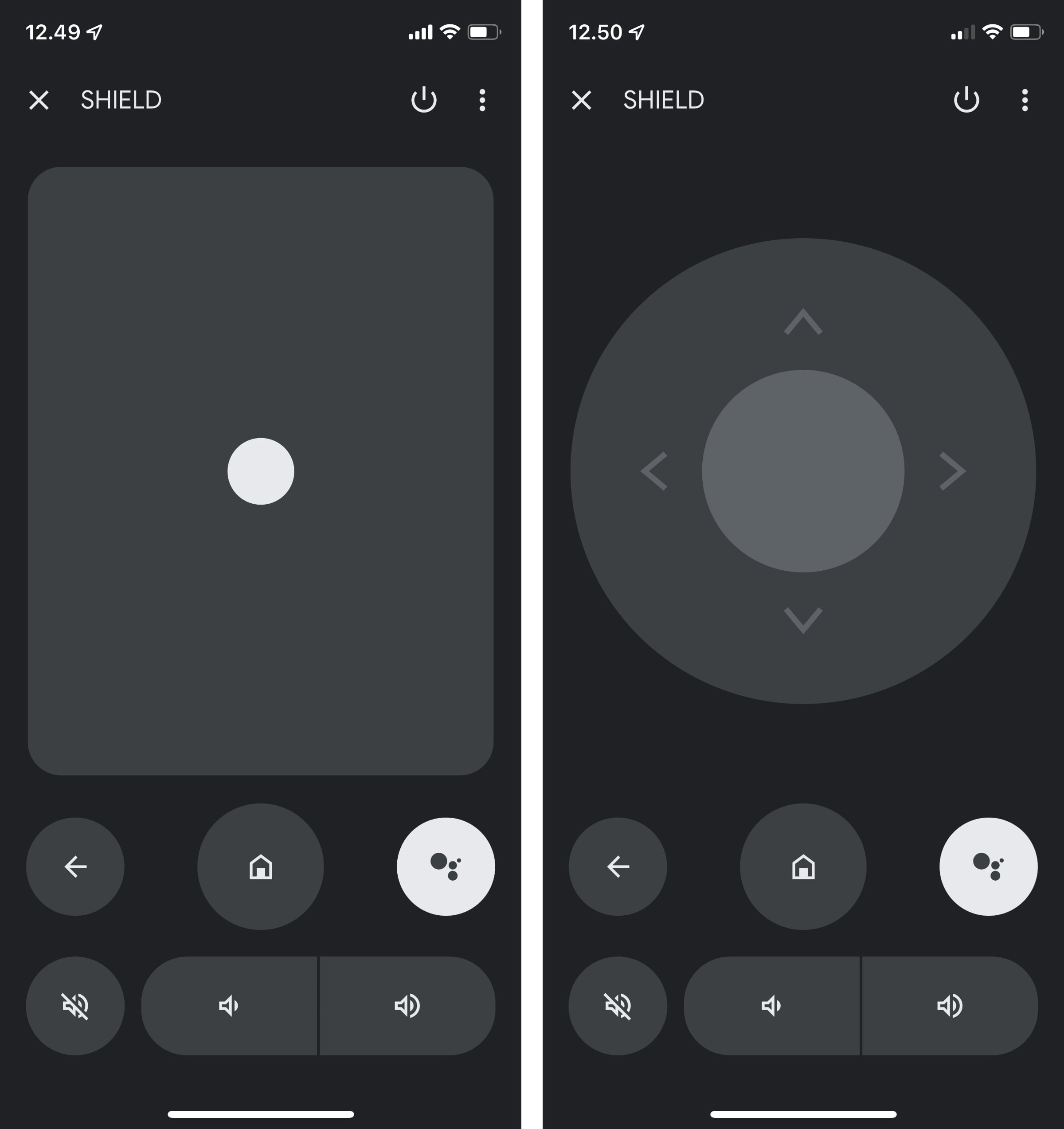
- For rich media control, add a Chromecast or use a Chromecast with Google TV remote.
Clear limits help set the right plan for How To Control Samsung Tv With Google Home? in your home.
Advanced setups and real-life tips
From my installs, here is what works best:
- Name devices in the room first. Living Room TV is much easier for Google to detect.
- Keep the TV on Ethernet if possible. It helps with wake reliability.
- Use a smart plug only for legacy sets. Do not cut the power to modern TVs often.
- If you use a soundbar, expose it to Google too. Then set a routine to switch TV input and set soundbar volume in one go.
- For movie nights, link smart lights. A single phrase can dim lights, switch inputs, and set the TV picture mode.
Clients often ask How to control a Samsung TV with Google Home? for families. Set up a Goodnight routine. It turns off all TVs, locks doors, and dims lights. It saves time and stops late-night screen glare.
This is the simple way to master how to control a Samsung TV with Google Home. without extra hassle.
When to add Chromecast
Add a Chromecast or Chromecast with Google TV if you want:
- Natural media requests. Example: Play Stranger Things on Netflix on the living room TV.
- Better power-on with CEC.
- Unified recommendations and a full remote.
With Chromecast, How To Control Samsung TV with Google Home? grows beyond power and volume. You get direct content control with one voice line.
Frequently Asked Questions on How To Control Samsung Tv With Google Home?
Do I need a SmartThings hub to control my Samsung TV?
No. Most Samsung TVs act as SmartThings devices without a hub. You only need the SmartThings app linked to your Samsung account.
Can Google Home turn my Samsung TV on and off?
Yes, for off. For one, your model must support wake via network or CEC. Enable Power On with Mobile or add a Chromecast for reliable power-on.
Why can’t I launch apps by voice on my Samsung TV?
App launches via SmartThings vary by model and region. A Chromecast enables direct commands like play on YouTube or Netflix with Google Assistant.
Will this work if my TV and phone are on different networks?
No. Keep your TV on your home network and signed into your Samsung account. Your phone needs internet, and both clouds must link through SmartThings.
Can I change inputs with Google Assistant?
Yes. Use commands like switch Living Room TV to HDMI 1. Make sure the target device is on, and the input names are clear.
How do I fix slow or missed commands?
Shorten device names, update firmware, and check Wi‑Fi or Ethernet. Re-link SmartThings to Google Home if the device goes offline.
Does this work with older Samsung TVs?
Some older models have limited support. If SmartThings does not see your TV, add a Chromecast for basic voice control over power and media.
Conclusion
You can set up How To Control Samsung Tv With Google Home in minutes. Add your TV to SmartThings, link it to Google Home, and test simple commands. Build routines for mornings and movie nights, and add a Chromecast if you want rich media control.
Make today the day you go hands-free. Try one routine, teach one family command, and enjoy your setup. If this helped, share it with a friend or leave a comment with your wins and roadblocks.


2 Comments