
Learn how to set up Kwikset Smart Lock Code quickly with simple steps for adding, changing, and managing user codes securely. To set up a Kwikset smart lock code, enter programming mode, create a unique code, and test the lock. Learning how to set up Kwikset smart lock code access can make daily entry easier while improving control over your home.
The exact steps vary by model, such as SmartCode, Halo, Aura, or Obsidian, so this guide explains the safest setup methods, common errors, code limits, and best practices in clear steps.

What You Need Before Setting Up a Kwikset Smart Lock Code
Before you learn how to set up Kwikset smart lock code access, identify the lock model. Kwikset uses different systems for keypad locks and app-connected locks. A SmartCode 909 may use buttons on the interior panel, while a Halo model may use the Kwikset app.
Check these items first:
• The lock has fresh AA batteries.
• You know the current programming code, if one already exists.
• The door is open during setup.
• The deadbolt moves freely by hand.
• You have the user code you want to add.
• You have the lock’s instruction manual or model number.
You can usually find the model number on the inside portion of the lock, the original package, or the battery cover. This step matters because button names and programming sequences can differ between models.
A code should not include an easy pattern such as 1234, 0000, your birth year, or your street number. Use a code that household members can remember, but visitors cannot guess.

Source: youtube.com
How to Set Up Kwikset Smart Lock Code on a Keypad Model
The following process applies to many Kwikset SmartCode keypad locks. The exact button sequence can vary, so confirm the steps in your model guide before making changes.
Step 1: Keep the door open
Open the door and extend the deadbolt by hand. Then retract it. The bolt should move smoothly without scraping the strike plate.
Keeping the door open prevents accidental lockouts. It also lets you test the new code without trapping yourself outside.
Step 2: Locate the Program button
Remove the interior battery cover. Look for a button labeled “Program.” On some models, this button is near the battery pack or below the batteries.
Do not press random buttons while searching. If your lock has a touchscreen, the setup process may use the touchscreen and the interior programming button together.
Step 3: Press the Program button
Press the Program button once. On many SmartCode models, the keypad flashes or beeps. This indicates that the lock is ready for a new user code.
Some models require you to enter a programming code before adding a user code. If your lock uses a master code, follow the manual’s order carefully.
Step 4: Enter the new user code
Enter a four- to eight-digit code, depending on the model. Then press the lock button or the checkmark button to save it.
Wait for the confirmation beep or light pattern. A failed signal usually means the code length is not supported, programming mode timed out, or the lock needs a different sequence.
Step 5: Test the code
With the door still open, enter the new code on the keypad. Press the lock symbol if your model requires it. The deadbolt should retract.
Test the code at least twice. Also lock the door from the outside and confirm that the bolt fully extends into the strike plate.
This is the basic answer to how to set up a Kwikset smart lock code on many keypad models, but model-specific instructions always take priority.
Source: acslocks.com
How to Set Up Kwikset Smart Lock Code With the Kwikset App
Kwikset Halo and some other connected locks use the Kwikset app for code management. The app can let you create, edit, delete, and schedule codes from your phone.
Connect the lock to the app
Install the official Kwikset app from your phone’s approved app store. Create an account or sign in, then follow the pairing instructions for your lock.
Keep Bluetooth enabled during local setup. Some models also require Wi-Fi credentials for remote access, notifications, and control when you are away from home.
Add a user code
After pairing the lock:
- Open the lock in the app.
- Select the option for access codes or users.
- Choose “Add Code” or a similar command.
- Enter a name for the user.
- Create a unique code.
- Choose permanent, one-time, or scheduled access if supported.
- Save the settings.
- Test the code at the door.
The name is useful for tracking access. For example, you might label codes “Guest Room,” “Dog Walker,” or “Cleaner.” Avoid sharing your main owner code when a temporary code will work.
Check remote features
Remote control may require a Wi-Fi connection or a compatible hub. Bluetooth-only operation may work when you are close to the lock but not when you are away.
If the app shows that the lock is offline, do not assume the code was erased. Test the code at the keypad first, then check the lock’s battery level and network connection.

Source: youtube.com
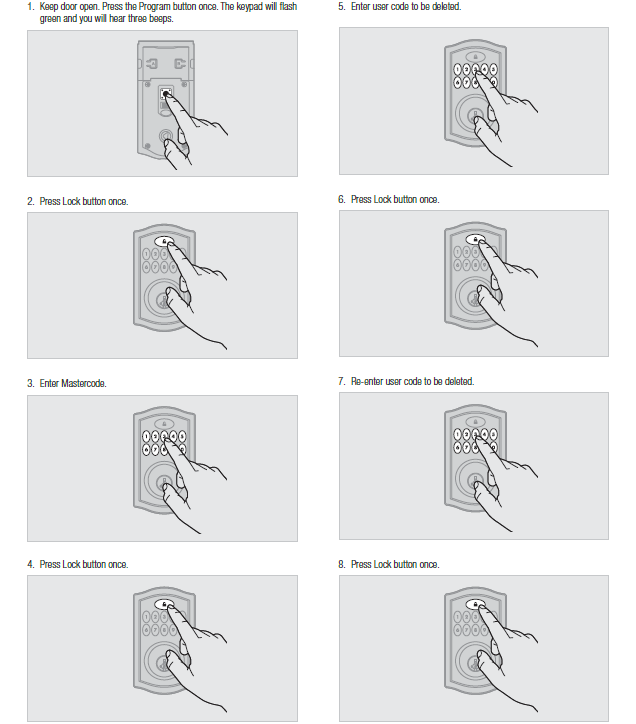
How to Set Up Kwikset Smart Lock Code Using a Mastercode
Some Kwikset locks support a mastercode. This code helps protect programming settings and can limit changes to authorized users.
A mastercode is not always enabled by default. If you turn it on, store it in a secure password manager or another safe place. Do not write it on the lock or leave it beside the door.
A typical setup may follow this general pattern:
- Open the door.
- Press the Program button.
- Enter the master code programming command shown in the manual.
- Create the master code.
- Confirm the entry.
- Add a separate user code.
- Test both programming access and normal unlocking.
The sequence differs by model. Never assume that a SmartCode 270 sequence will work on a Halo or Obsidian lock.
A master code does not replace a user code. The master code manages settings, while the user code unlocks the door. Keeping these functions separate improves security and makes access easier to manage.
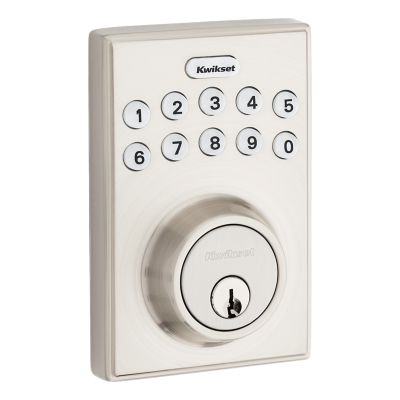
Source: kwikset.com
How to Delete or Change a Kwikset Smart Lock Code
Knowing how to set up Kwikset smart lock code access also includes knowing how to remove old codes. Delete codes when a tenant moves out, a contractor finishes work, or a guest no longer needs access.
On a keypad lock, deletion often requires the programming button, the existing programming code, the user code slot, or a specific command. On an app-connected model, open the access-code list and select the code you want to remove.
After deleting a code, test it. A deleted code should no longer unlock the door. If it still works, wait for the lock and app to sync, then test again while standing near the lock.
Changing a code is often safer than reusing an old code. If you suspect that someone has learned your code, remove it and create a new one immediately.

Source: youtube.com
Kwikset Smart Lock Code Length and Code Limits
Kwikset code length depends on the lock model. Many electronic deadbolts support four- to eight-digit user codes, but you should confirm the allowed length in the manual.
Some models also limit the number of stored codes. A keypad lock may support several user codes, while a connected model may support more users through the app.
Keep these limits in mind:
• Use only the number of digits supported by your model.
• Do not add spaces, symbols, or letters unless the lock supports them.
• Avoid duplicate codes for different people.
• Remove codes that are no longer needed.
• Use scheduled codes for short-term access when available.
If the lock rejects a code, the issue may not be the number itself. The memory could be full, the lock may still be in programming mode, or the code may already exist.
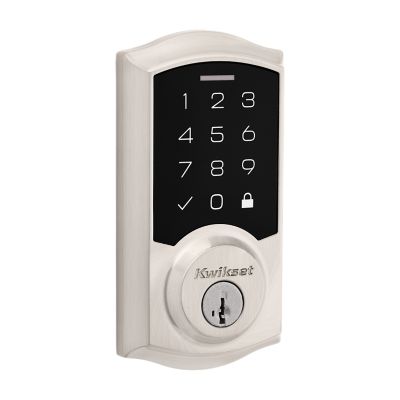
Source: kwikset.com
Common Problems When Setting Up a Kwikset Smart Lock Code
The new code does not work
First, check whether you pressed the lock button after entering the code. Some models unlock after the final digit, while others require the lock symbol.
Next, confirm that the code was saved. Listen for the confirmation beep and watch for the correct light pattern. Then test the code while the door is open.
The keypad does not respond
Weak batteries are a common cause. Replace all batteries at the same time with the type listed in the manual.
Cold weather, dirt, moisture, or repeated failed attempts can also affect keypad performance. Wipe the keypad with a dry, soft cloth and allow the lock to return to normal before trying again.
The deadbolt jams
A motorized lock cannot work well if the bolt presses against the strike plate. With the door open, test the bolt. If it works when open but fails when closed, adjust the strike plate or door alignment.
Do not force the thumb turn. Force can damage the motor or internal gears.
The lock will not enter programming mode
The lock may have a master code enabled, a low battery, or an incomplete previous setup. Some locks also need a reset before they accept a new programming sequence.
A factory reset can erase user codes and connected settings. Use it only when necessary, and follow the model-specific instructions.
The app does not show the new code
Keep your phone close to the lock and allow time for synchronization. Check Bluetooth, Wi-Fi, app permissions, and battery power.
If the keypad accepts the code but the app does not display it, the local lock may be working while the cloud connection is delayed.

Source: youtube.com
Resetting a Kwikset Smart Lock Before Code Setup
A factory reset may be useful if you purchased a used lock, forgot the programming code, or cannot pair the lock with the app. However, resetting removes stored user codes and may erase network settings.
Before resetting:
• Remove the lock from your app account if possible.
• Record the model number.
• Have fresh batteries ready.
• Keep the door open.
• Read the reset section in the manual.
After the reset, run the door-handing process if your model requires it. Door handing teaches the lock which direction the deadbolt must turn. If this step is skipped, the lock may rotate the wrong way or stop before fully locking.
Resetting is not the first choice for a simple code change. Try the normal programming process first.
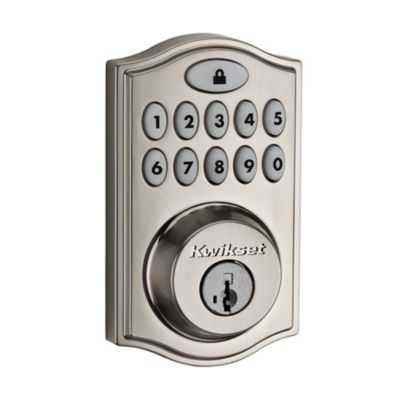
Source: kwikset.com
Security Tips for Kwikset Smart Lock Codes
A smart lock code is like a house key that can be copied from memory. Treat it with care.
Use these habits:
• Give each person a separate code.
• Do not share your owner or programming code.
• Avoid codes linked to public information.
• Delete temporary codes after use.
• Review app activity when the feature is available.
• Update the lock firmware through the official app when prompted.
• Keep the lock’s batteries fresh.
• Lock the door manually if the battery is fully drained and the model supports a backup key.
• Store the physical key in a secure, reachable location.
Never post your code in a group chat or leave it on a note near the entry. If you must share access, a temporary or scheduled code is usually better than your permanent household code.
Practical Setup Tips From Real-World Lock Installation
One pattern that appears often during smart-lock setup is that the code is not the real problem. Door alignment is usually the hidden issue. A lock may accept the code but fail to move because the bolt rubs against the frame.
Test the lock in this order:
- Move the bolt by hand with the door open.
- Test the motor with the door open.
- Close the door without turning the lock.
- Test the code.
- Inspect the strike plate if the bolt binds.
Another common mistake is closing the door too soon. Always test a new code several times with the door open. This simple habit can prevent a stressful lockout.
The best setup is not the fastest setup. Take a few minutes to label codes, remove old access, and confirm that the door locks completely.
Frequently Asked Questions About How To Set Up Kwikset Smart Lock Code
How do I set up a Kwikset smart lock code for the first time?
Open the door, install fresh batteries, and press the interior Program button or use the Kwikset app. Enter a supported four- to eight-digit code, save it, and test it while the door remains open.
Why is my new Kwikset code not working?
The code may not have saved, may have the wrong number of digits, or may require the lock button after entry. Check the model instructions, listen for the confirmation signal, and test the code again with the door open.
Can I set up a Kwikset code without the app?
Yes, many keypad models allow you to add codes using the interior Program button. Connected models may offer app setup, but local keypad programming may still be available depending on the model.
How many codes can a Kwikset smart lock store?
The limit depends on the model. Check the product manual for the exact number of user codes, and delete unused codes if the lock reports that its memory is full.
How do I delete a Kwikset smart lock code?
Use the lock’s programming sequence or open the access-code section in the Kwikset app. After deleting the code, test it at the keypad to confirm that it no longer unlocks the door.
What should I do if I forget my Kwikset programming code?
Check your records and the model manual first. If the code cannot be recovered, a factory reset may be required, but it will erase stored codes and connected settings.
Conclusion
Setting up a Kwikset smart lock code is usually simple when you identify the model, keep the door open, use fresh batteries, and follow the correct programming sequence. Keypad locks often use an interior Program button, while Halo and other connected models may use the Kwikset app.
Create separate codes, remove old access, and test every change before closing the door. Use the model manual for exact button commands, especially when enabling a master code or performing a factory reset.
Set up your code carefully today, then review your lock’s access list regularly to keep your home secure and convenient.