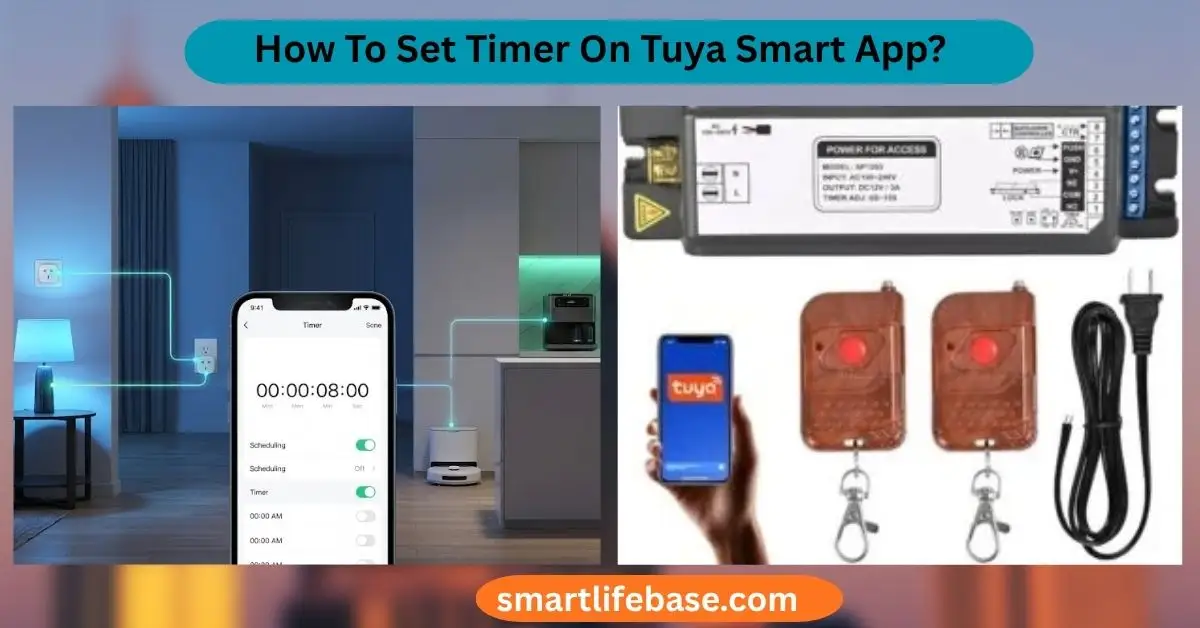
How To Set Timer On Tuya Smart App? Step-by-step guide with pro tips to automate routines, save energy, and schedule devices in minutes. Open Tuya Smart, select device, tap Timer or Schedule, set time, save. If you need a clear guide on how to set a timer on the Tuya Smart App, you are in the right place.
I use Tuya daily for lights, plugs, and sensors, and I’ll show you How To Set Timer On Tuya Smart app in simple steps, with pro tips, real examples, and fixes you can trust. Read on to master schedules, countdowns, and smart automations that work every time.
Source: olsenandsmith.com
What Tuya Timers Can Do And Why They Matter
Tuya Smart app timers control when your devices turn on or off. You can set a one-time schedule, a repeat schedule, a countdown, or a cycle. You can also run timers through scenes and automations.
This helps you cut energy use and keep routines steady. Lights can turn on at sunset or while you travel. Fans can cycle through the night. In smart homes, timing makes devices feel helpful and natural. If you want to learn How To Set Timer On Tuya Smart App?, start with these basics.
Common timer types you will see:
- Schedule sets a time and days for a device to turn on or off.
- Countdown turns the device on or off after a set delay.
- Cycle runs devices on and off in repeated intervals.
- Automation triggers a device action at a time or event, like sunrise.
Set a Timer From a Device Page (Fast Method)
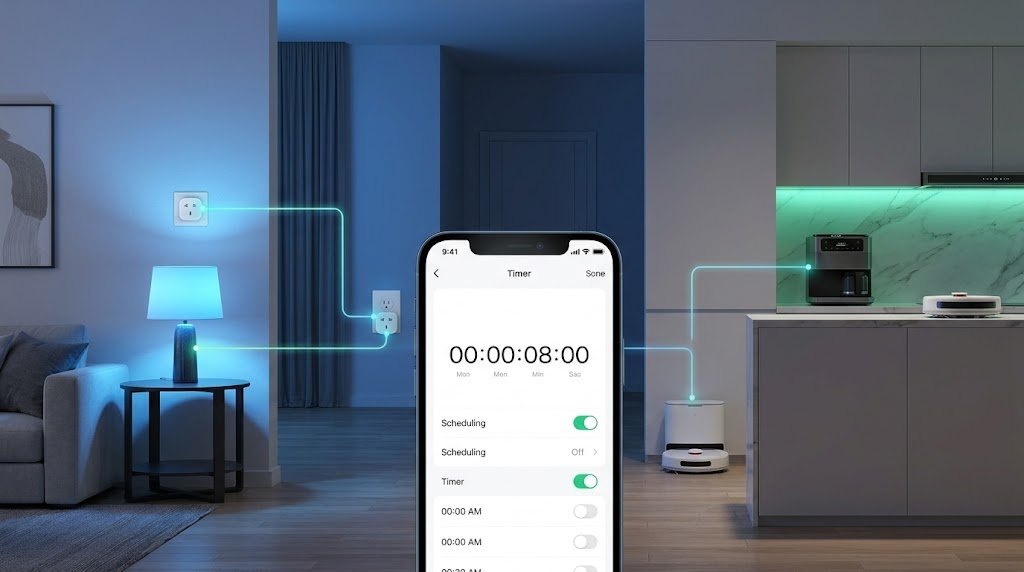
This method is quick and works well for a single device like a smart plug or bulb. It is often labeled Timer, Schedule, or Countdown on the device screen.
Steps:
- Open the Tuya Smart app and pick your device.
- Look for Timer, Schedule, or Countdown on the device page.
- To set a schedule, tap Add, choose a time, action (On or Off), and repeat days.
- To set a countdown, pick a delay like 30 minutes, then select On or Off.
- Save the timer and make sure the toggle is enabled.
Practical example:
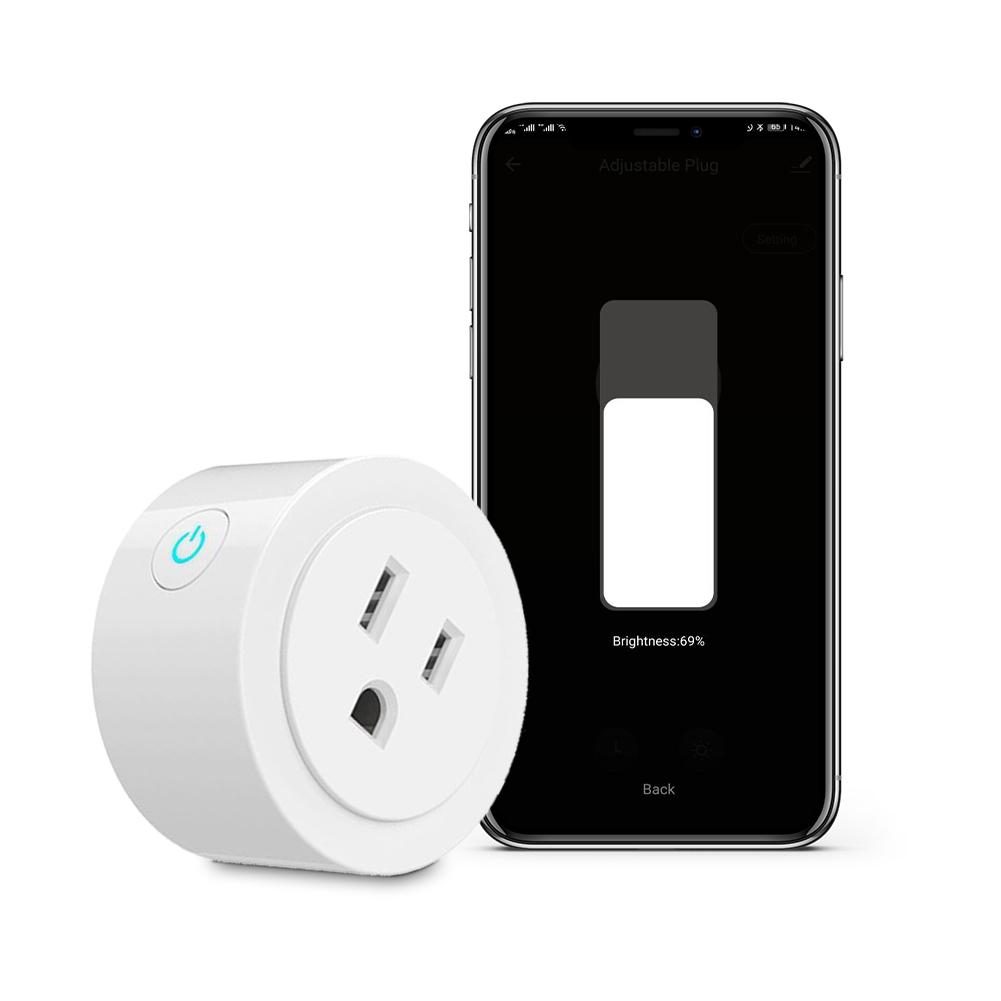
- Smart plug for a lamp. Set On at 6:30 PM and Off at 11:00 PM, repeat daily.
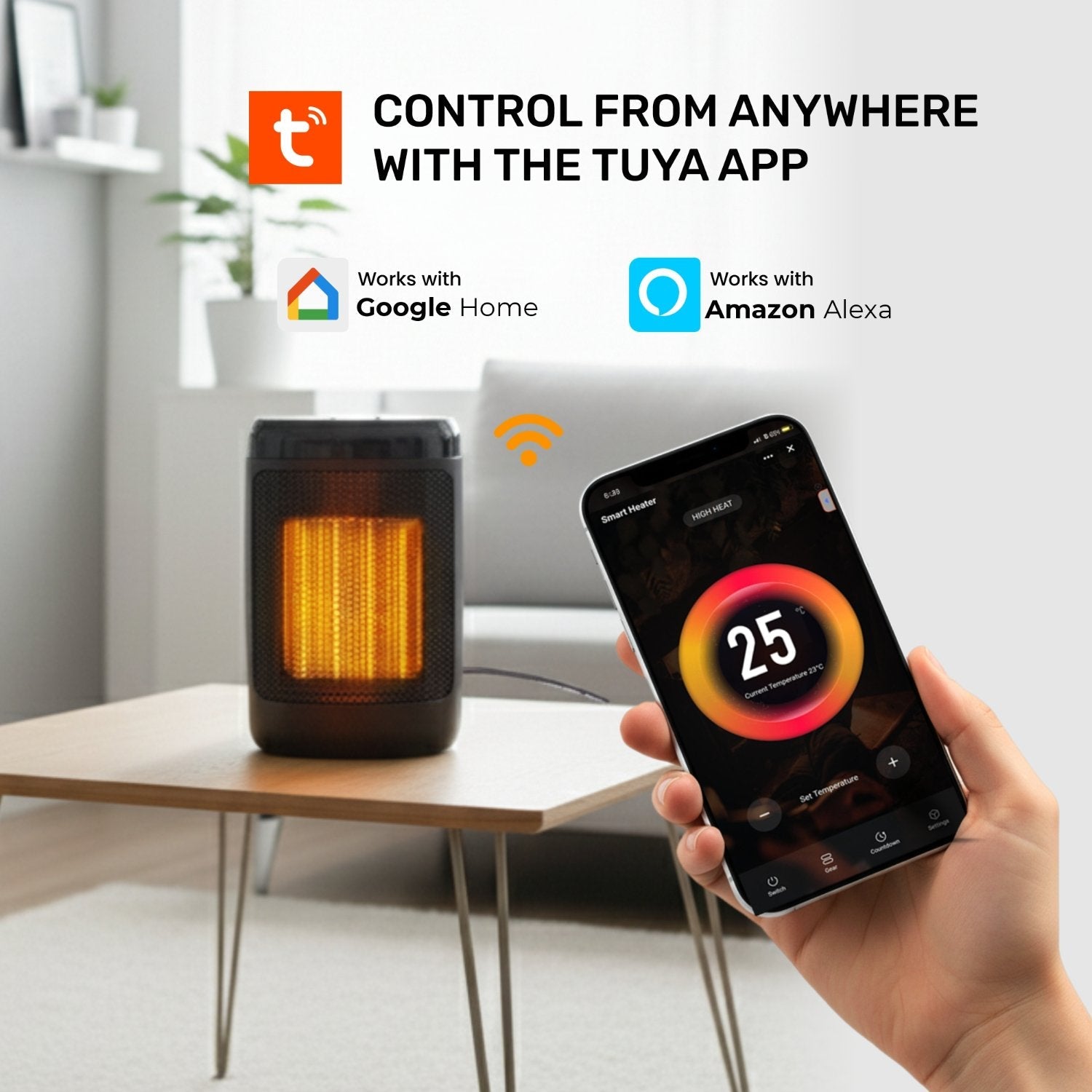
- Portable heater. Use Countdown to switch off after 2 hours for safety.
I use this method when I need a simple on/off at a set time. If you wonder How To Set Timer On Tuya Smart app for a single device, start here. It is the most direct path.

Source: capirari.com
Create a Schedule With Smart Automations (Flexible Method)
Automations give more control and can manage many devices at once. You can also use sunrise or sunset times, delays, and conditions.
Steps:
- Open Tuya Smart and go to the Smart tab at the bottom.
- Tap Automation, then tap the plus sign to add one.
- Under When, choose Schedule or Sunrise/Sunset. Set the time or sun event and repeat days.
- Under Then, tap Run device and pick the device and action (On or Off).
- Optional: Add a Delay or extra actions for other devices.
- Save and enable the automation.
Examples:
- Porch light at sunset. At sunset, turn on the porch light, and turn it off at 11:30 PM.
- Weekday routine. At 6:00 AM on weekdays, turn on a kettle plug and kitchen lights.
- Vacation presence. Randomize light timings across evening hours with multiple automations.
I prefer automations for complex tasks. If you are asking How To Set Timer On Tuya Smart App? for groups or scenes, this is your path.

Source: amazon.com
Advanced Timing Options And Best Use Cases
Tuya supports more than fixed times. Explore these tools for better control and comfort.
- Sunrise or sunset: Use dynamic times that shift each day. Great for lights and blinds.
- Delay in scenes: Add delays between actions for smooth routines.
- Cycle timer: Keep a fan on 20 minutes, off 10 minutes, and repeat.
- Group control: Schedule a group of bulbs or plugs together.
- Randomization: Simulate presence while away by staggering multiple schedules.
Use cases I rely on:
- Bedroom fan cycle at night to save power and keep airflow steady.
- Pet feeder plug timer for twice-a-day runs. I also set a safety countdown.
- Holiday lights with sunset-based start and fixed end time.
If your goal is How To Set Timer On Tuya Smart App? with smart, human-like timing, these features help a lot.
Source: moeshouse.com
Pro Tips, Real Examples, And Common Mistakes
From years of use, these tips save time and prevent misses.
Pro tips:
- Name timers clearly. Use Lamp On 18:30 Daily or Fan Cycle Night.
- Use 24-hour time to avoid AM/PM mistakes.
- Put Wi-Fi devices on a stable 2.4 GHz network for better reliability.
- Keep phone and hub on the correct time zone.
Mistakes to avoid:
- Forgetting repeat days. A one-time schedule will not run again.
- Overlapping rules. Two schedules can fight and flip a device fast.
- Relying on cloud-only rules for critical loads. Prefer local control where possible.
Real example:
I once had two rules for a porch light. One turned it off at 11:00 PM, and another turned it on at 11:05 PM for a photo test. The light kept toggling. I fixed it by deleting the test rule and adding a one-time scene instead. This is a classic pitfall when learning How To Set Timer On Tuya Smart app.

Source: amazon.ie
Troubleshooting Timers In Tuya Smart
If a timer does not run, check these points before you reset everything.
- Confirm the device is online. Open the device page and see if it responds.
- Check time zone and phone time. Wrong time means wrong triggers.
- Review repeat days and AM/PM. Make sure the schedule matches your plan.
- Update firmware. Open device settings and check for updates.
- Check Wi-Fi quality. Poor signal causes misses. Move the device or router.
- Disable then re-enable the timer. Sometimes this refreshes the rule.
- Avoid power-sensitive loads. Some devices cut power too fast to execute cleanly.
According to Tuya’s guidance, some rules run via the cloud if local control is not available. If the internet is down, cloud timers may fail. This point matters when you plan How To Set Timer On Tuya Smart App for critical routines.
Security, Privacy, And Reliability Notes
Smart schedules feel simple, but they carry trust and safety needs.
- Use scenes for lights, not for risky heaters. Add countdowns as failsafes.
- Limit cloud-only rules for critical tasks. Prefer devices that support local execution.
- Keep your app and device firmware updated. It improves timing accuracy and security.
- Use strong Wi-Fi passwords and guest networks for IoT devices.
If you run a timer for door lights, you want it 100% reliable. When planning How To Set Timer On Tuya Smart App?, balance ease with safety and choose devices with strong uptime records.
Frequently Asked Questions about How To Set Timer On Tuya Smart App?
Where do I find the timer feature?
Open your device page in the Tuya Smart app. Look for Timer, Schedule, or Countdown on that screen.
Can I set a timer for multiple devices at once?
Yes. Use Smart > Automation to set one schedule that controls several devices. Choose each device under Then actions.
How do I use sunrise or sunset time?
In Smart > Automation, choose Schedule, then pick Sunrise or Sunset. You can also add an offset like 30 minutes before sunset.
Why did my timer not run on time?
Check the time zone, repeat days, and AM/PM. Also confirm the device was online and had a good Wi-Fi signal at the trigger time.
What is the difference between schedule and countdown?
Schedule runs at a specific time on certain days. Countdown runs once after a delay, like turning off a plug after 2 hours.
Do timers work if my internet goes down?
Some devices support local execution, but others rely on the cloud. If the rule is cloud-based, it may fail without internet.
Can I copy the same timer to other devices?
You cannot clone across devices directly in many cases. Instead, create an Automation and add all the target devices to the Then actions.
Conclusion
You can set fast timers from a device page or build powerful routines with Automations. Use countdowns for safety, schedules for daily habits, and sunrise or sunset for natural light. Keep names clear, check repeat days, and avoid overlapping rules.
Start today: open Tuya Smart, add one schedule, and watch your home flow on its own. If this guide on how to set a timer on the Tuya Smart App helped, subscribe for more smart home tips or share a question in the comments.