
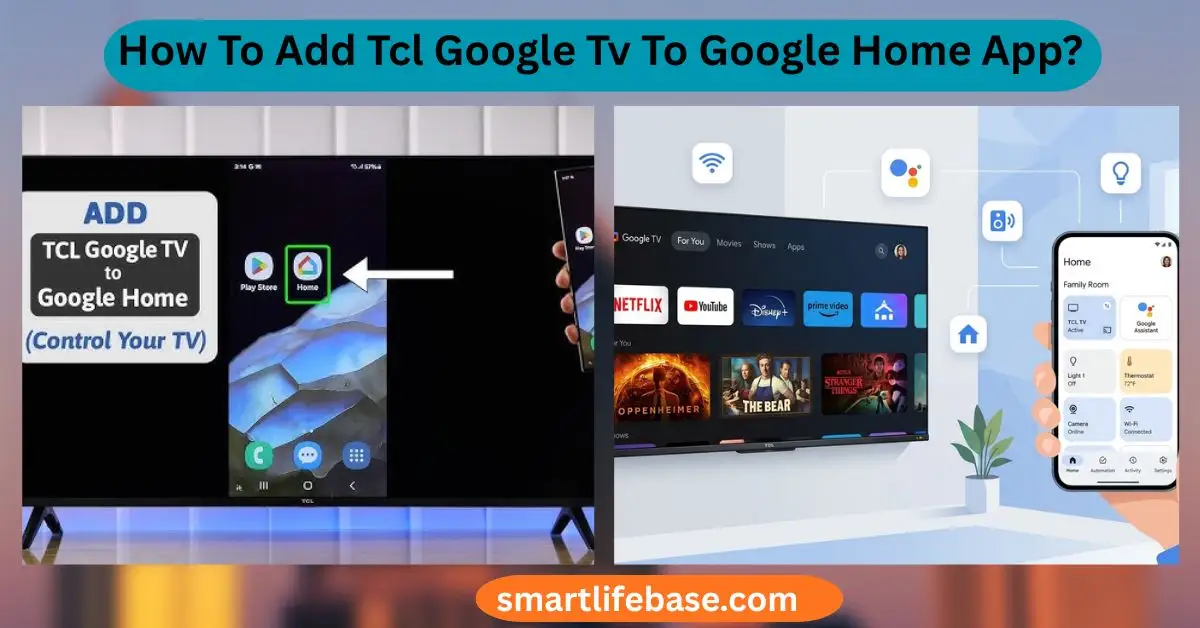
How To Add Tcl Google Tv To Google Home App? Follow the quick steps to connect, fix setup errors, and enable voice control for a seamless smart home. Open Google Home, sign in, detect your TCL Google TV, and then add it to a room. If you want a smooth, reliable setup, this guide on How to Add TCL Google TV to Google Home App? shows every step with simple checks and pro tips.
I specialize in Google TV and smart home integrations, and I’ll walk you through what works, what fails, and how to fix it fast so your TV responds to “Hey Google” every time.

Why add your TCL Google TV to the Google Home app
Pairing your TCL Google TV with Google Home brings your TV into the same hub as your speakers, lights, and routines. You can power the TV on or off by voice, cast content faster, and automate bedtime or movie-night scenes. It also enables remote control from the Google Home app when the remote goes missing.
In client setups, I see two instant wins. First, reliable voice commands once the TV is placed in a room. Second, hands-off automation, like dimming lights and launching YouTube with one command. These small upgrades make daily use feel seamless.

What you need before you start
Make sure you have these items ready. Skipping one often causes setup loops.
- A TCL TV that runs Google TV, not Roku or Fire TV.
- Your phone or tablet with the Google Home app is updated.
- Use the same Google account on your phone and on the TCL Google TV.
- Stable Wi-Fi on the same network for both devices. Avoid guest networks.
- Bluetooth turned on for faster discovery.
- TV software updated to the latest version.
If you are asking How To Add Tcl Google Tv To Google Home App?, these basics prevent most errors and save time. I always confirm the account and network first, before touching any advanced fixes.

Step-by-step: How To Add TCL Google TV to the Google Home App?
Follow these steps in order. It keeps things clean and avoids rework.
- Prepare your TCL Google TV
- Turn on the TV and finish the initial setup.
- Connect the TV to the same Wi-Fi network as your phone.
- Sign in to the TV with the same Google account used in Google Home.
- Go to Settings, then Accounts and Sign-In, and confirm your Google account.
- Enable Google Assistant on the TV when prompted.
- Optional but helpful: Turn on HDMI-CEC in TV settings to allow power and input control.
- Prepare the Google Home app
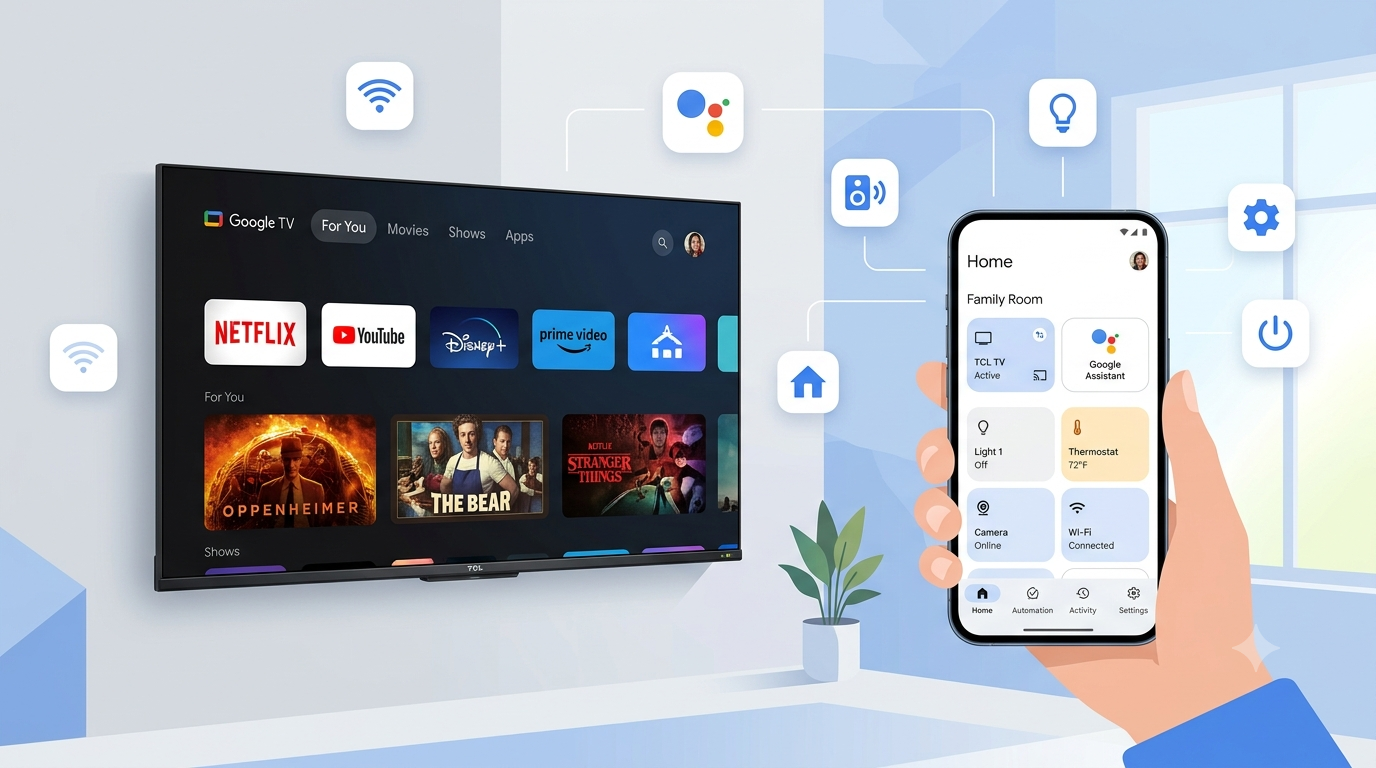
- Open Google Home on your Android or iOS device.
- Confirm you are signed in with the same Google account as the TV.
- Ensure Bluetooth is on and the phone is on the same Wi-Fi.
- Add the TV to Google Home
- Open Google Home and look for a card that says Set up TCL Google TV or Set up device.
- If shown, tap it, choose your Home, and pick a room like Living Room or Bedroom.
- If you do not see a card, tap the plus icon, choose Set up device, then New device, select your Home, and wait for discovery.
- When your TCL Google TV appears, tap it and follow the on-screen steps to assign it to a room.
- Verify control
– In the Google Home app, open the room you assigned. You should see your TV as a device.
- Tap the TV tile to test power, volume, or input controls.
- Say Hey Google, turn on the TV to test voice control with a nearby Nest speaker or phone.
This covers the core of How to Add Tcl Google TV to Google Home App? on both Android and iOS. If your TV does not appear, jump to the troubleshooting section below.

Optional enhancements after setup
Once your TCL Google TV shows up in Google Home, add these upgrades for a better experience.
- Assign the TV to a room. Room placement improves voice clarity. Example: Hey Google, turn on Living Room TV.
- Create a movie routine. Dim lights, switch TV input, and set volume with one command.
- Enable Ambient Mode and photo frames. Use Google Photos for a personal screensaver.
- Link streaming services in Google Assistant. Faster voice launches like Play Stranger Things on Netflix.
- Turn on HDMI-CEC. Let your TV power on the soundbar and switch inputs automatically.
These steps are simple quality-of-life tweaks that I add for every client after setup. They turn a basic link into a polished smart home flow.
Troubleshooting: when your TCL Google TV does not appear
If the TV is missing in Google Home, fix the basics first. Most issues come from accounts, Wi-Fi, or updates.
Quick checks
- Confirm the same Google account on both phone and TV.
- Make sure both devices use the same Wi-Fi band and SSID.
- Turn Bluetooth on during setup.
- Restart both the TV and your phone, then reopen Google Home.
Deeper fixes
- Update TV software. Settings, System, About, System update.
- Clear the Google Home app cache on Android or reinstall the app on iOS.
- Disable AP Isolation or client isolation on your router.
- Temporarily turn off VPNs or private DNS on your phone.
- Ensure the TV is not in a Guest Wi-Fi or separate VLAN.
- Reset Google Home permissions on the TV. Settings, Apps, See all apps, Google, then clear cache and restart.
- Factory reset as a last resort. Settings, System, Reset. Then redo the steps in How to Add TCL Google TV to Google Home App?.
Common pitfalls I see in the field
- Wrong TV platform. TCL Roku TVs need a different method, and the Roku service is under Works with Google. Google TV models do not.
- Mismatched accounts. If you have multiple Google accounts, the TV will not show in the Home tied to the other account.
- Stale network gear. Old routers block device discovery. A quick router reboot or toggling 2.4/5 GHz bands often helps.
Use this checklist whenever How To Add Tcl Google Tv To Google Home App? feels stuck. It saves a lot of guesswork.

Voice commands that work well every day
Once linked, try these short commands. They work with Nest speakers, Nest Hub, or your phone.
- Turn on the Living Room TV.
- Switch TV to HDMI 1.
- Set TV volume to 15.
- Open YouTube on TV.
- Pause the TV.
- Play Stranger Things on Netflix on TV.
Pro tip: If a command fails, add the room name. Also, confirm the TV’s device name in the Google Home app. Renaming to TCL Living Room TV reduces confusion when you have multiple screens.
:max_bytes(150000):strip_icc()/add_device_android-0707d4da0c7c4b06ba9b633557c2b8ce.jpg)
Frequently Asked Questions on How To Add TCL Google Tv To Google Home App?
Do I need the TCL Home app for TCL Google TV?
No. TCL Google TV links directly with Google Home when you use the same Google account and Wi-Fi. The TCL Home app is for other TCL devices and is not required here.
Can I add a TCL Roku TV the same way?
No. TCL Roku TVs use the Roku platform. Use Works with Google in the Google Home app, then link the Roku account to enable voice control.
Why can’t Google Home find my TV?
It is usually an account or network mismatch. Confirm the same Google account on both devices and the same Wi-Fi, then restart both the TV and your phone.
Will voice commands turn my TV on and off?
Yes, if the TV supports CEC and you enabled it. Place the TV in a room and use commands like Hey Google, turn on Bedroom TV.
Can multiple people control the same TV?
Yes. Add household members in Google Home and use Voice Match. Everyone gets control of their own Google account.
Do I need Bluetooth on for setup?
Bluetooth helps fast discovery, but is not always required. If discovery fails over Wi-Fi, turning on Bluetooth often fixes it.
How do I move my TV to another room in Google Home?
Open the Google Home app, tap the TV, tap the gear icon, and select Room. Choose the new room and save.
Does this work with an iPhone?
Yes. Install Google Home on iOS, sign in with the same Google account, and follow the same steps.
Conclusion
You now know the exact path to add your TCL screen, test voice control, and polish the setup with rooms, routines, and CEC. The process is simple when you match accounts, share Wi-Fi, and follow the steps in How to Add TCL Google TV to Google Home App?
Put these tips to work today and enjoy hands-free TV control that actually sticks. Try it now, then share your results or questions in the comments so others can learn from your setup too.
4 Comments