Get step-by-step help on How To Connect Bose Lifestyle 28 To Samsung Smart Tv. Fix HDMI-ARC, optical, and audio sync issues fast with clear setup tips. Use a Toslink optical or analog RCA audio connection from the TV to the Bose console. If you own a classic Bose Lifestyle 28 and a new Samsung Smart TV, you can still get great sound with the right setup.
This guide explains how to connect the Bose Lifestyle 28 to a Samsung Smart TV in clear steps, with pro tips, simple settings, and fixes I use in real installs. I’ll show you the best method, backup options, and how to tune the system so movies and apps sound rich and stay in sync.
Before you start: understand your Bose Lifestyle 28 and Samsung TV
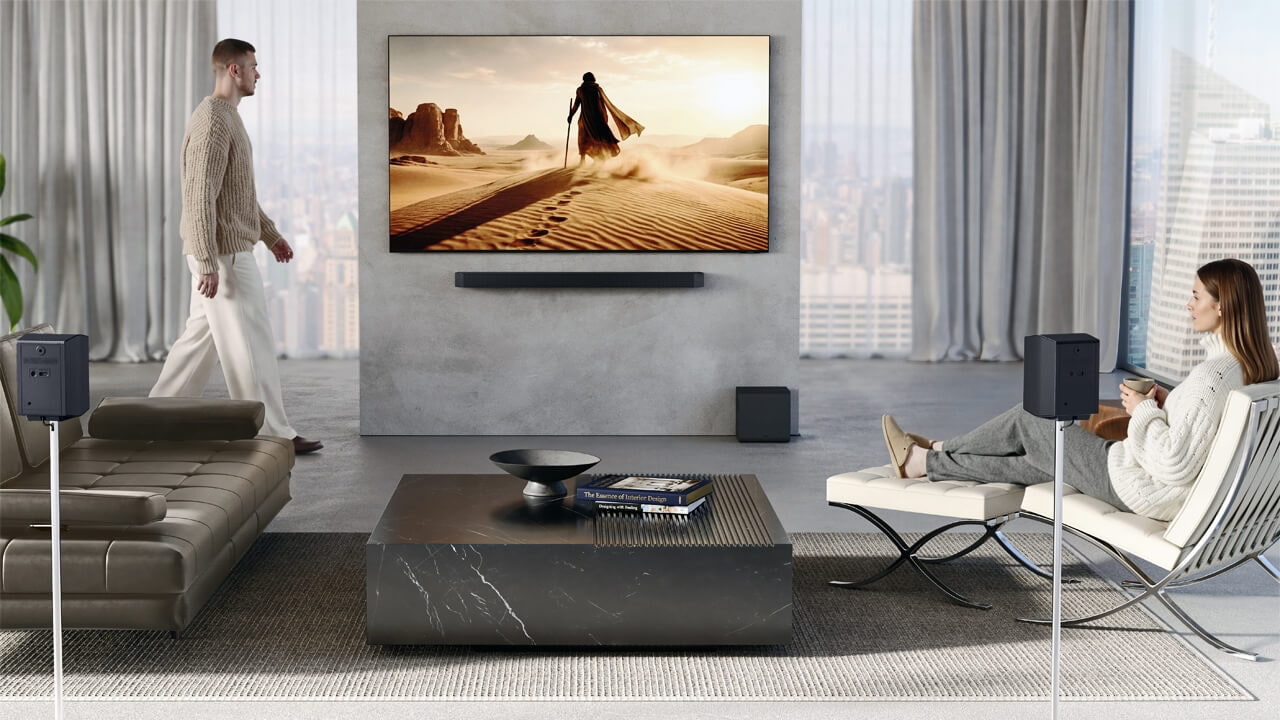
The Bose Lifestyle 28 is a legacy 5.1 home theater system. Its console handles audio switching and decoding. It lacks HDMI ARC, so you cannot pass audio over HDMI from the TV to Bose. Most Samsung Smart TVs support a digital optical audio output. That output is the best bridge to your Bose.
Your Bose console may include these audio inputs:
- Optical digital audio (Toslink)
- Coaxial digital audio (RCA-style, orange)
- Analog stereo audio (red/white RCA)
Your Samsung TV likely has:
- Digital Audio Out (Optical)
- HDMI ARC or eARC (not directly usable with the Bose without an adapter)
- No analog audio out on many newer models
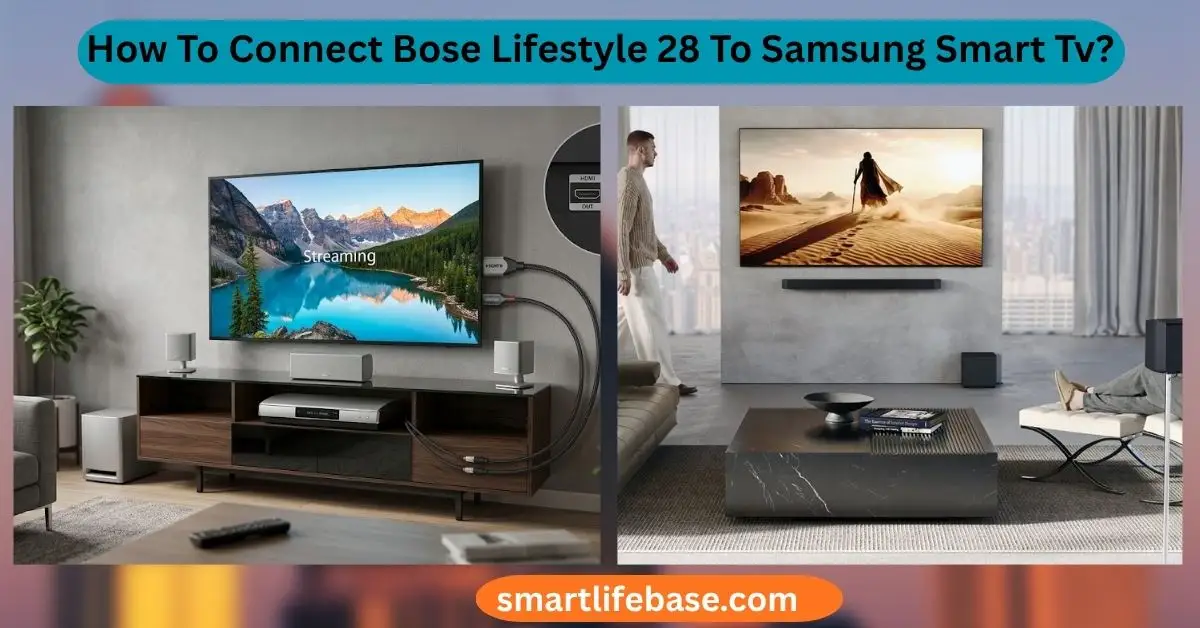
This means the cleanest path is optical from the TV to a digital input on the Bose. For anyone asking How To Connect Bose Lifestyle 28 To Samsung Smart Tv with modern apps, optical is the go-to.

What you need
Gather a few low-cost items before you begin:
- Toslink optical cable for TV to Bose
- Optional: Optical-to-coax digital converter if your Bose has only coaxial digital input
- Optional: Optical-to-analog DAC if your Bose has only analog RCA inputs
- Optional: HDMI eARC/ARC audio extractor if your TV lacks optical or you want ARC control
- Fresh batteries in your Bose remote and Samsung remote
These parts make How To Connect Bose Lifestyle 28 To Samsung Smart Tv fast and stable.

Method 1: optical digital audio (best and easiest)
This is the method I use in most homes. It is simple and sounds great.
Steps:
- Power off the TV and Bose.
- Remove the small plastic caps from each end of the Toslink cable.
- Plug the optical cable into the Samsung TV Digital Audio Out (Optical).
- Plug the other end into a Bose optical input on the Lifestyle 28 console.
- Power on the TV and Bose.
Set TV audio:
- On Samsung: Settings > Sound > Sound Output > Optical/Receiver (or “Optical”).
- Go to Settings > Sound > Expert Settings.
- Set Digital Output Audio Format to Dolby Digital for 5.1 when available. Use PCM if you get no sound.
- Adjust Digital Output Audio Delay if lips are out of sync.
Set Bose input:
- On the Bose remote, select the input you chose (often “TV” or “AUX”).
- In the Bose system menu, assign that input to “Optical” or “Digital” if needed.
- Disable TV speakers so audio does not echo.
Test:
- Play a streaming app with 5.1 support.
- Start with PCM to confirm audio. Then try Dolby Digital for surround.
- Raise the volume on the Bose. The Samsung remote will not change optical volume.
This path answers How To Connect Bose Lifestyle 28 To Samsung Smart TV for most rooms and keeps wiring clean.

Method 2: If your Bose has no optical input (use converters)
Some Lifestyle 28 variants differ in digital inputs. You still have options.
- TV optical to Bose coaxial digital:
- Use an optical-to-coax SPDIF converter.
- TV Optical Out → Converter → Coaxial digital cable → Bose Digital In.
- TV optical to Bose analog RCA:
- Use an optical-to-analog DAC.
- TV Optical Out → DAC → Red/white RCA → Bose Analog In.
- Set TV Digital Output Audio Format to PCM for analog DACs.
- TV HDMI ARC/eARC to Bose:
- Use an HDMI ARC/eARC audio extractor with optical or analog out.
- TV HDMI ARC/eARC Port → Extractor → Optical or RCA → Bose.
- This helps if your TV lacks optical or you need ARC features.
These adapters are cheap and work well. They rescue many installs when asking How To Connect Bose Lifestyle 28 To Samsung Smart Tv with older gear.
Method 3: Connect your sources directly to the Bose
If you own a cable box, Blu-ray player, or old media player, try this:
- Send video to the TV via HDMI.
- Send audio to the Bose via digital or analog from each source.
Examples:
- Blu-ray: HDMI to TV, Optical or coax digital to Bose.
- Set-top box: HDMI to TV, Optical or coax digital to Bose.
Pros:
- Often gets true Dolby Digital 5.1.
- Bypasses TV audio limits.
Cons:
- More remotes and input changes.
- Not ideal for TV apps.
I use this layout when the owner watches discs or cable more than streaming apps. It is a solid plan for How To Connect Bose Lifestyle 28 To Samsung Smart Tv when you want consistent surround.
Optimize sound: ADAPTiQ, surround formats, and control
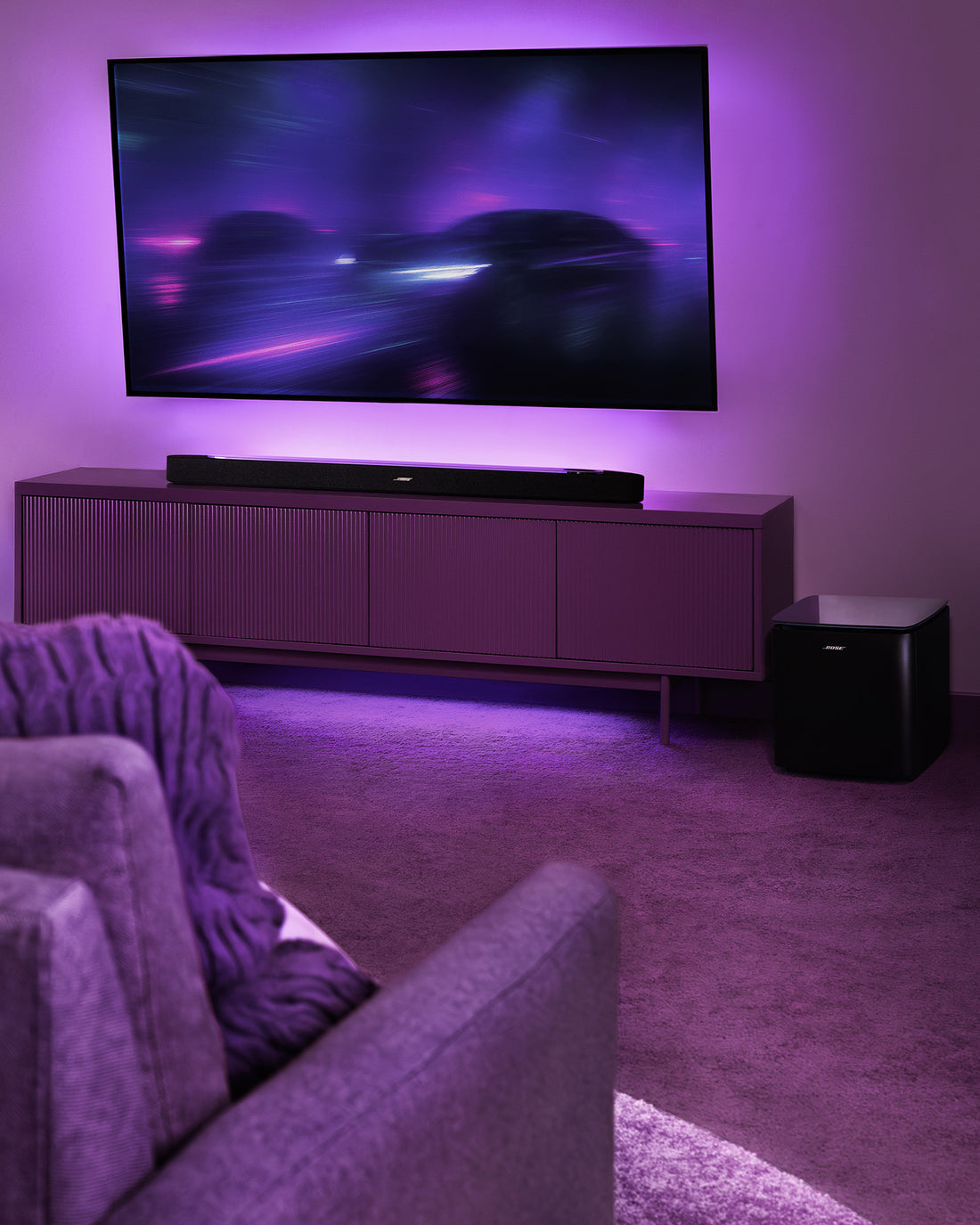
Run Bose ADAPTiQ:
- Find the ADAPTiQ headset in your Bose kit.
- Plug it into the console. Follow the on-screen voice prompts.
- Sit in your main seats as it runs. It sets levels and delays for the room.
Audio formats:
- Optical supports PCM 2.0 and Dolby Digital 5.1.
- Samsung TVs dropped DTS on many newer models. Set the TV to Dolby Digital for surround.
- Some apps use Dolby Digital Plus. The TV will down-convert to Dolby Digital over optical.
Lip sync:
- If voices lag, add delay in the TV’s Expert Settings or in the Bose AV Sync menu.
Remote control:
- Optical volume is fixed on many Samsungs. Use the Bose remote.
- Or program a universal remote to control the Bose volume.
- On Samsung, try Source > Universal Remote to map your Bose, but results vary.
This tuning step is where How To Connect Bose Lifestyle 28 To Samsung Smart Tv goes from “works” to “wow.”
Troubleshooting common issues
No sound at all:
- Check the Toslink caps. Many forget to pull them off.
- Ensure the optical plug clicks into place and the red light is visible at the cable end.
- Set TV output to Optical and use PCM to test.
- Assign the Bose input to Digital/Optical.
Only stereo, not surround:
- Switch TV Digital Output Audio Format to Dolby Digital.
- Use an app or source that supports 5.1 content.
- If your source is connected to the TV, confirm the TV can pass 5.1 via optical for that app.
Audio delay or echo:
- Disable TV speakers.
- Adjust Digital Output Audio Delay on the TV.
- Use Bose AV Sync to fine-tune.
Volume too low or unstable:
- Use the Bose remote for volume with optical.
- If using a DAC to analog, set TV to PCM and avoid extra audio enhancements.
Hiss or hum:
- Digital optical will not hum. If you hear noise, you may be using analog. Reseat RCA cables and keep them away from power cords.
These fixes cover almost every call I get on How To Connect Bose Lifestyle 28 To Samsung Smart Tv and keep the setup rock solid.
Frequently Asked Questions about How To Connect Bose Lifestyle 28 To Samsung Smart TV
Can I use HDMI ARC from the TV straight into the Bose Lifestyle 28?
No. The Lifestyle 28 does not support HDMI ARC. Use the TV’s optical out or an ARC/eARC audio extractor that converts ARC to optical or analog.
Will I get 5.1 surround sound from Netflix or Prime Video apps?
Often yes, as Dolby Digital 5.1 over optical. If you hear only stereo, switch TV output to Dolby Digital and confirm the title has 5.1 audio.
Can the Samsung remote control the Bose volume over optical?
Usually no, since optical is fixed-level. Use the Bose remote or program a universal remote to control the Bose console.
What audio format should I choose on the Samsung TV?
Start with PCM to confirm sound. Then switch to Dolby Digital for 5.1 when supported by the app or source.
My Bose has only coaxial digital input. What should I do?
Use an optical-to-coax digital converter. It is a cheap adapter that works well for this setup.
Will DTS tracks play through my Samsung TV to Bose?
Most recent Samsung TVs do not output DTS. Use Dolby Digital where possible, or let source devices convert DTS to Dolby Digital or PCM.
Conclusion
You can connect a classic Bose Lifestyle 28 to a modern Samsung Smart TV and get great, stable sound. The best path is optical from the TV to the Bose, with Dolby Digital set on the TV and ADAPTiQ tuned on the Bose. If your gear lacks the right port, add a small converter, and you are set.
Take 15 minutes today to wire it up, run ADAPTiQ, and enjoy your shows with clear dialog and rich surround. If this guide helped, share it, subscribe for more setup tips, or leave a comment with your room and model details so I can help you fine-tune How To Connect Bose Lifestyle 28 To Samsung Smart TV.