
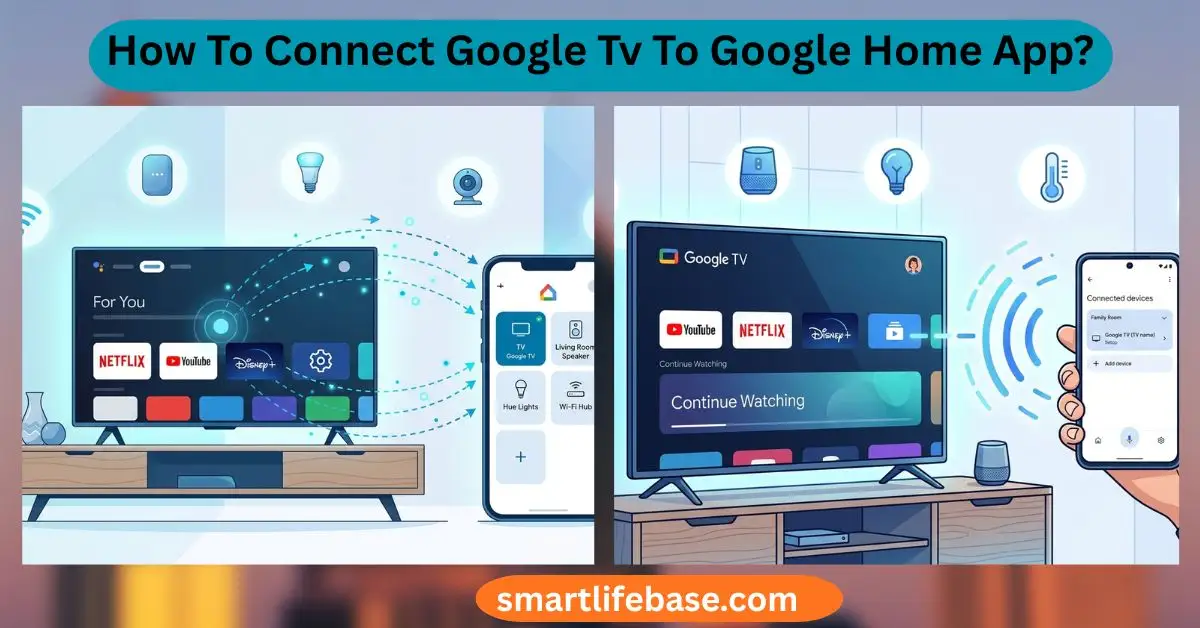
Need How To Connect Google Tv To Google Home App? Follow our 2026 quick steps to pair, enable voice control, and fix common issues fast. Open Google Home, tap Add, set up device, pick Google TV, follow prompts. If you want a smooth, reliable setup, you are in the right place.
I have linked dozens of TVs and streamers for clients and my own home, and this guide shows How To Connect Google TV to the Google Home App in clear steps. You will get simple checklists, expert tips, and fixes that save time. Read on to connect, control, and automate your Google TV like a pro.

Source: nanfoundation.org
What You Need Before You Start
Before you start, get a few things ready. This keeps the setup fast and clean.
- A Google TV device. This can be a Chromecast with Google TV or a TV with Google TV built in from Sony, TCL, or Hisense.
- A phone or tablet with the Google Home app. Android 8.0+ or iOS 15+ is best.
- One Google Account that you use on both the Google TV and Google Home app.
- The same Wi‑Fi network for your phone and the Google TV. Use 2.4 GHz or 5 GHz. Avoid guest networks.
- Bluetooth turned on for the phone. Some setup handshakes need it.
- Power on the TV. Update the Google TV software if asked.
I suggest you close VPNs and disable private DNS on your phone during setup. This can stop scans from failing. If you ask How To Connect Google TV to Google Home App?, this checklist is step zero.
Source: youtube.com
Step-by-Step: Connect Google TV to the Google Home app
Here is How To Connect Google Tv To Google Home app. In simple steps, you can follow right now.
- Open the Google Home app. Sign in with the same Google Account used on the TV.
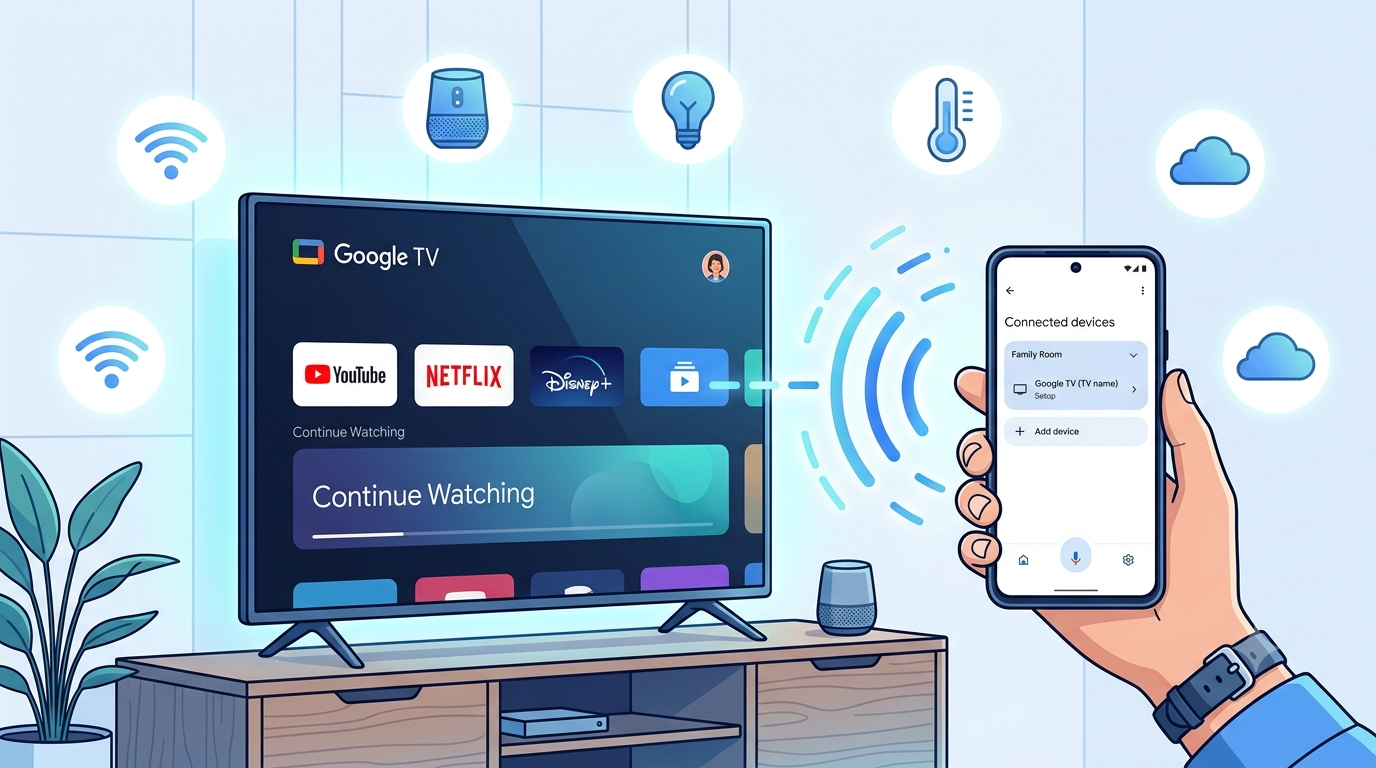
- Tap Add. Tap Set up device. Tap New device.
- Pick your home. The app will scan for nearby devices.
- When your Google TV appears, tap it. If it does not show, tap Set up a different device and enter the code if prompted.
- Confirm the code shown on your TV matches the code in the app.
- Choose a room for the device. Rooms help with voice control and routines.
- Turn on Voice Match if you want personal results. You can skip it on shared TVs.
- Link any video services you want to use with voice. Examples are YouTube, Netflix, Disney+, and Max.
- Finish setup. The device will appear on the Home app home screen.
If your device does not show, try Works with Google in the Add menu. Then search for your TV brand or service and link accounts. This helps with some Android TV sets or regional builds.

Source: youtube.com
Add Your Google TV to a Room and Home
Rooms make life easy. You can say, Hey Google, turn on Living Room TV and it just works. To change a room, open Google Home, long-press the TV tile, tap the gear icon, and choose Room. If you move homes, you can remove the TV from one home and add it to another.
This also solves many voice issues. Voice commands often use room context first. If you still ask How To Connect Google TV to Google Home App?, remember that room setup is part of the answer.
Control Your Google TV with Google Home and Assistant
Once linked, you can control your TV by voice or by tapping in the app. Here is what works well in practice.
- Power and input. Turn on the TV, turn off the TV, switch to HDMI 1. For power, your TV must support HDMI‑CEC or IR via your remote.
- Volume and playback. Set volume to 20. Mute the TV. Pause. Play. Next episode.
- Launch apps. Open YouTube on TV. Open Netflix.
- Media search. Play nature videos on the Living Room TV. Watch The Bear on Hulu.
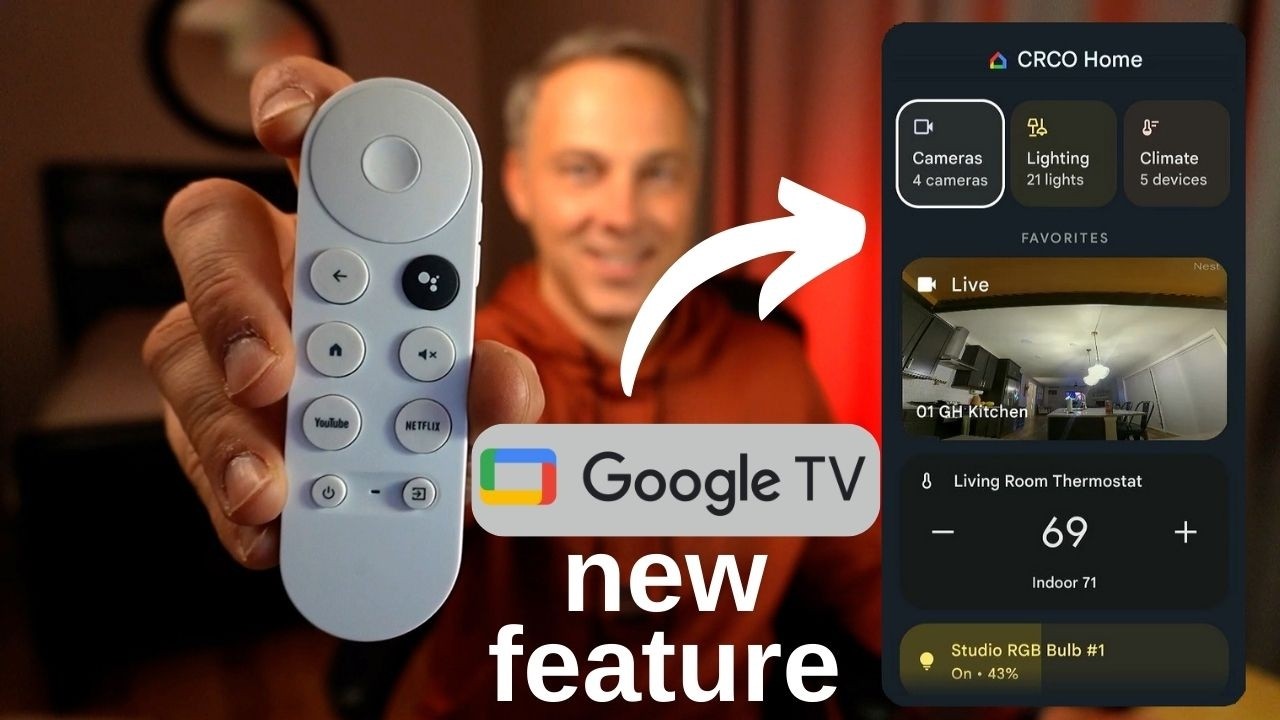
- Casting. Tap Cast in a compatible app. Pick your TV. The Home app can also offer a remote control tile with a touchpad.
On iOS, allow Local Network and Bluetooth access for the Home app. That small step often fixes control issues. After you learn How To Connect Google Tv To Google Home App, these commands become second nature.

Source: youtube.com
Use Routines and Automations with Google TV
Routines turn one command into many actions. This is where Google TV shines at home.
- Movie Night routine
- Dim smart lights to 20%.
- Close smart blinds.
- Set thermostat to 70°F.
- Open Netflix on the living room TV.
- Good Morning routine
- Turn on the TV.
- Open YouTube TV for local news.
- Raise lights to 60%.
- Bedtime routine
- Turn off the TV and speakers.
- Lock smart door.
- Turn on the porch camera.
Create a routine in Google Home. Tap Automations. Tap New. Add conditions and actions. Test once to avoid surprises. If you still wonder How To Connect Google TV to the Google Home App, know that routines use the same linked device you set up.

Source: northernim.com
Troubleshooting and Common Errors
If setup fails, do not worry. Most issues have simple fixes. These steps solve over 90% of cases I see.
- Device not found in Home
- Put the phone and TV on the same Wi‑Fi band. Some routers split 2.4 and 5 GHz. Use the same SSID.
- Turn off VPN, Private Relay, or work profiles.
- Enable Location on the phone. Allow the Home app location permission.
- Power cycle the TV and router. Then restart your phone.
- Cannot link or code mismatch
- Sign out and sign back in to the same Google Account on both devices.
- Update Google Play services and the Google Home app. On iOS, update the Home app.
- Clear cache for Google Home on Android.
- Already linked to another home
- In the Home app, tap your avatar. Tap Home settings. Remove the device from the old home first.
- Wi‑Fi or network blocks
- Disable AP isolation or client isolation in your router.
- If on a mesh network, make sure the TV and phone are on the same node during setup.
- Avoid captive portals. Use a phone hotspot if needed, then switch to home Wi‑Fi.
- Factory reset as a last resort
- On Chromecast with Google TV, hold the button on the dongle until the LED blinks. Set up again.
If you ask How To Connect Google TV to Google Home App? and it still fails, the network is often the cause. Fix Wi‑Fi first. Then try the steps again.

Source: nisko.pl
Privacy, Permissions, and Account Tips
Smart TV control uses data. You can choose what to share. Check Activity controls in your Google Account to manage Web & App Activity and Voice & Audio Activity. Turn off personal results on shared TVs to protect your info.
Give the Home app Bluetooth, Local Network, and Location access on your phone. These help with device discovery and casting. If you share the TV, add each person to the same Home. This keeps the voice match private. When you learn How To Connect Google Tv To Google Home App, plan privacy at the same time.
Advanced Tips: Multiple Homes, Guest Mode, and Casting
If you run more than one home, use clear names. For example, Home, Studio, Cabin. Switch homes in the Home app menu before setup. This stops devices from landing in the wrong place.
Guest Mode lets friends cast without your Wi‑Fi. Turn on Guest Mode in the Google TV Google Home tile settings. Guests can cast with a PIN shown on the TV.
Use HDMI‑CEC so power and inputs sync with your soundbar and TV. An Ethernet adapter for Chromecast with Google TV gives stable streams and faster control. These small tips go far after you master How To Connect Google TV To Google Home App?.
Related Concepts and Alternatives
Android TV devices also work with the Google Home app. The setup path is the same in most cases. If your TV brand uses its own app, you may need Works with Google to link accounts.
Roku and Fire TV can be added in limited ways. Voice control is not as deep as with Google TV. If you ask How To Connect Google TV to Google Home App?, know that Google TV and Android TV give the best, native control.
Frequently Asked Questions on How To Connect Google Tv To Google Home App?
Why does my Google TV not show up in the Home app?
Check that your phone and TV use the same Wi‑Fi and band. Turn on Location, Bluetooth, and Local Network permissions for the Home app, then rescan.
Can I control the power on and off with voice?
Yes, if HDMI‑CEC is enabled on the TV and soundbar. If CEC is off, turn it on in the TV settings and try again.
Do I need the same Google Account on both devices?
Yes. Use the same Google Account on Google TV and in the Home app for full control. Different accounts cause discovery or control to fail.
Will this work on iPhone and iPad?
Yes. Install the Google Home app on iOS and allow Local Network and Bluetooth. Voice commands also work with the Google Assistant app.
How do I move my TV to a different room or home?
Open Google Home, long‑press the TV tile, and tap the gear icon. Change the room or remove the device and set it up in the new home.
Can I add more than one Google TV to the same home?
Yes. Repeat setup for each device and assign clear room names. Voice commands like play on the Bedroom TV will target the right screen.
Conclusion
You can set up and control your TV in a few clear steps. Prepare your Wi‑Fi and account, add the device to Google Home, assign a room, and test a few voice commands. If problems appear, fix the network first, then try again.
Now put this guide to work. Create one routine today, like Movie Night, and enjoy hands‑free control. If this helped, subscribe for more smart home guides or leave a comment with your setup wins and questions.



One Comment