
Learn how to connect Google Home to TV without Chromecast using smart TVs, third-party adapters, and casting apps. Clear steps, pros and cons, and safety tips. Link Google Home to your TV using smart TVs, Roku, IR hubs, or Bluetooth. If you want to know how to connect a Google Home to a TV without Chromecast, you are in the right place.
I have set up living rooms for clients and for myself, and I have tested many paths that do not need a Chromecast. Below, I explain simple, proven methods, the pros and cons of each, and clear steps you can trust.

Source: gabinetedelaorden.com
How this works and what to expect
You can connect Google Home to a TV without a Chromecast in a few ways. The best path depends on your TV, your streaming box, and your budget. In this guide on How to Connect Google Home To TV Without Chromecast?, I cover smart TVs, Roku players, IR blasters, Bluetooth audio, and an advanced bridge.
Before you start, check these basics:
- Use the same Google account on your phone and, if possible, on your TV or box.
- Put all devices on the same Wi‑Fi network.
- Name your TV in the Google Home app in a simple way, like “Living Room TV.”
Method 1: Use Android TV or Google TV without Chromecast
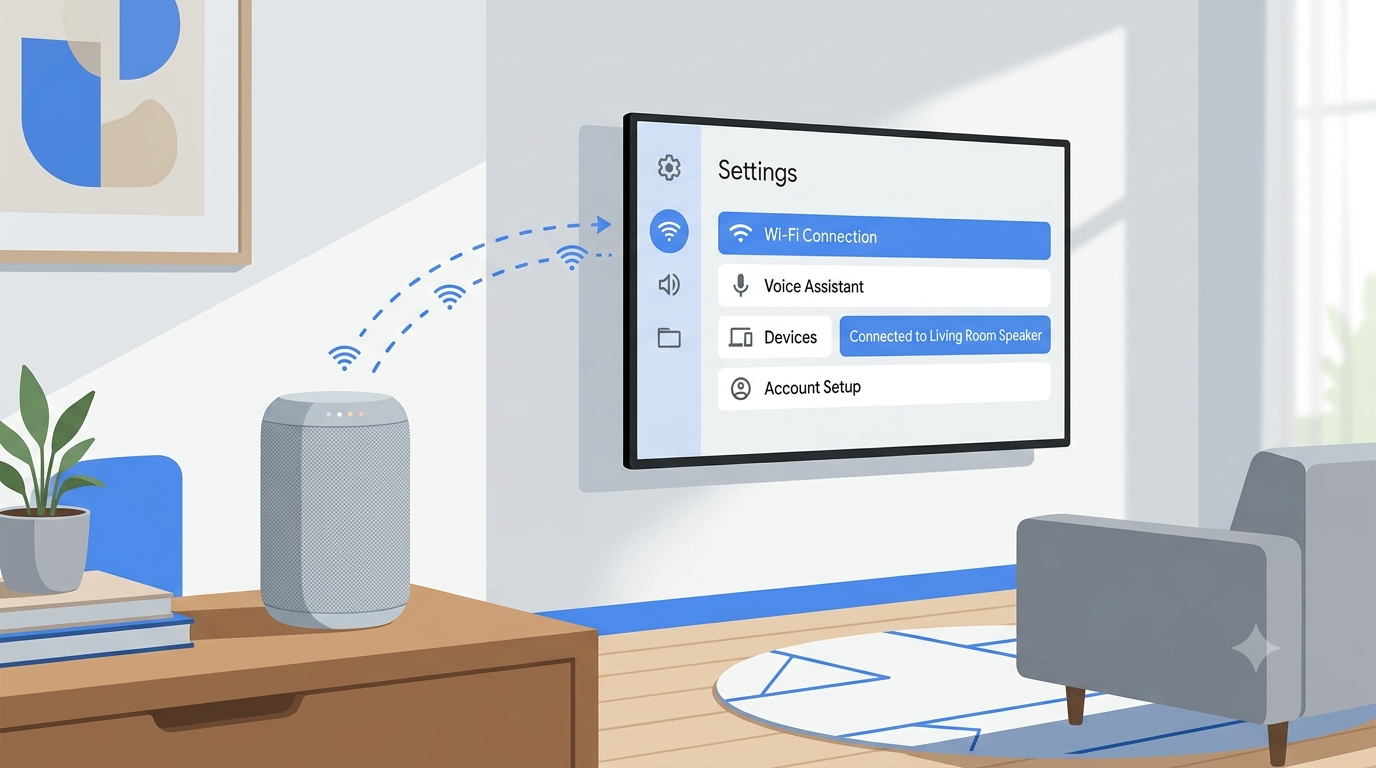
Many TVs and streamers run Android TV or Google TV. They work with Google Assistant out of the box. This is my favorite way because it is fast and stable. It is the most direct answer to How To Connect Google Home To TV without Chromecast? If you own a compatible set.
Steps:
- Sign in to your Google account on the TV or Google TV device.
- On your phone, open the Google Home app. Pull down to refresh devices.
- If your TV does not appear, tap Add. Tap Set up device. Tap Works with Google. Search for your brand or Google TV. Link your account.
- Assign the TV to a room. Give it a clear name.
What you can say:
- “Hey Google, turn on Living Room TV.”
- “Hey Google, open YouTube on Living Room TV.”
- “Hey Google, pause the TV.”
Notes from experience:
- App launch and play controls work best on Google TV devices.
- Some older Android TV sets need a firmware update for full control.
Source: gabinetedelaorden.com
Method 2: Link a Roku streaming player
Roku works well with Google Assistant. You can turn on the TV, launch channels, and control playback. If you ask me How To Connect Google Home To TV without Chromecast?, Roku is the best non‑Chromecast path for most homes.
Steps:
- Update Roku to the latest software. Enable 1‑touch play (HDMI‑CEC) on your TV.
- In the Google Home app, tap Add. Tap Works with Google. Search for Roku. Sign in to your Roku account and link.
- Choose your Roku device. Assign it to a room and name it.
Try these commands:
- “Hey Google, turn on the TV on Roku.”
- “Hey Google, launch Netflix on Roku.”
- “Hey Google, pause Roku.”
Limits:
- Some channel names differ by region. Use the exact channel name on Roku.
- App sign‑ins still happen with the Roku remote.
Source: americanmusicabroad.com
Method 3: Control your TV with an IR blaster or smart remote hub
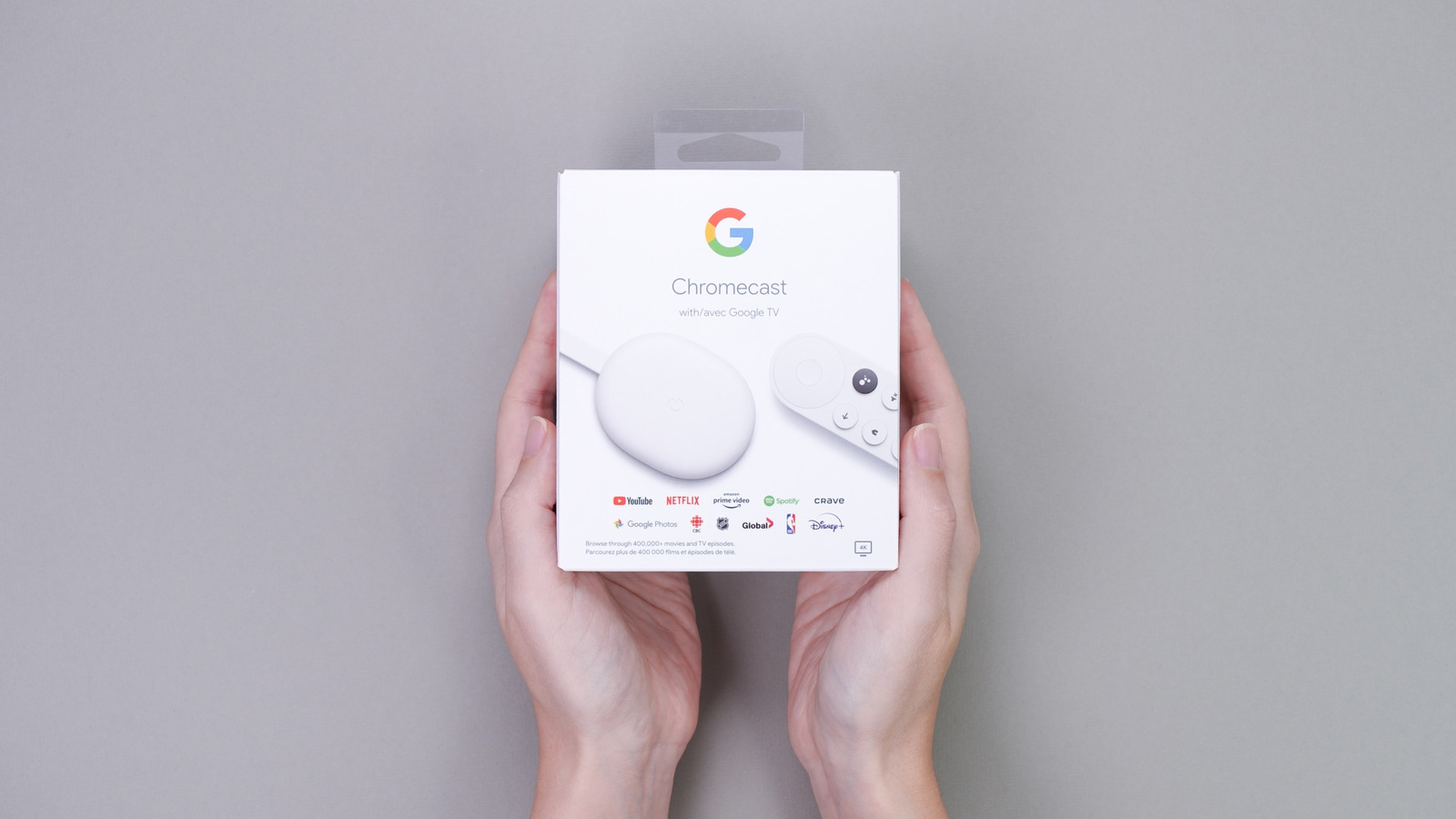
No smart TV? No problem. An IR hub like BroadLink RM4 mini, a Sofabaton hub, or a legacy Harmony Hub can control power, volume, and inputs. You then link the hub to Google Home. This is the most universal answer to How To Connect Google Home To TV without Chromecast? for older TVs.
Steps I use with BroadLink:
- Set up the BroadLink hub in its app. Add your TV as a device. Learn or pick the remote codes.
- In the Google Home app, tap Add. Tap Works with Google. Search for BroadLink. Link your account.
- Map voice commands to TV actions. Optionally, build Home routines like “Movie time.”
What works well:
- Power on and off, volume up and down, mute, and input switch.
- You can also control soundbars and AVRs with the same hub.
Limits and tips:
- IR needs a line of sight. Place the hub where it can “see” the TV IR window.
- Streaming control is basic. For apps, pair this with a Roku or Android TV box.
Source: gabinetedelaorden.com
Method 4: Pair your Google Home as a Bluetooth TV speaker
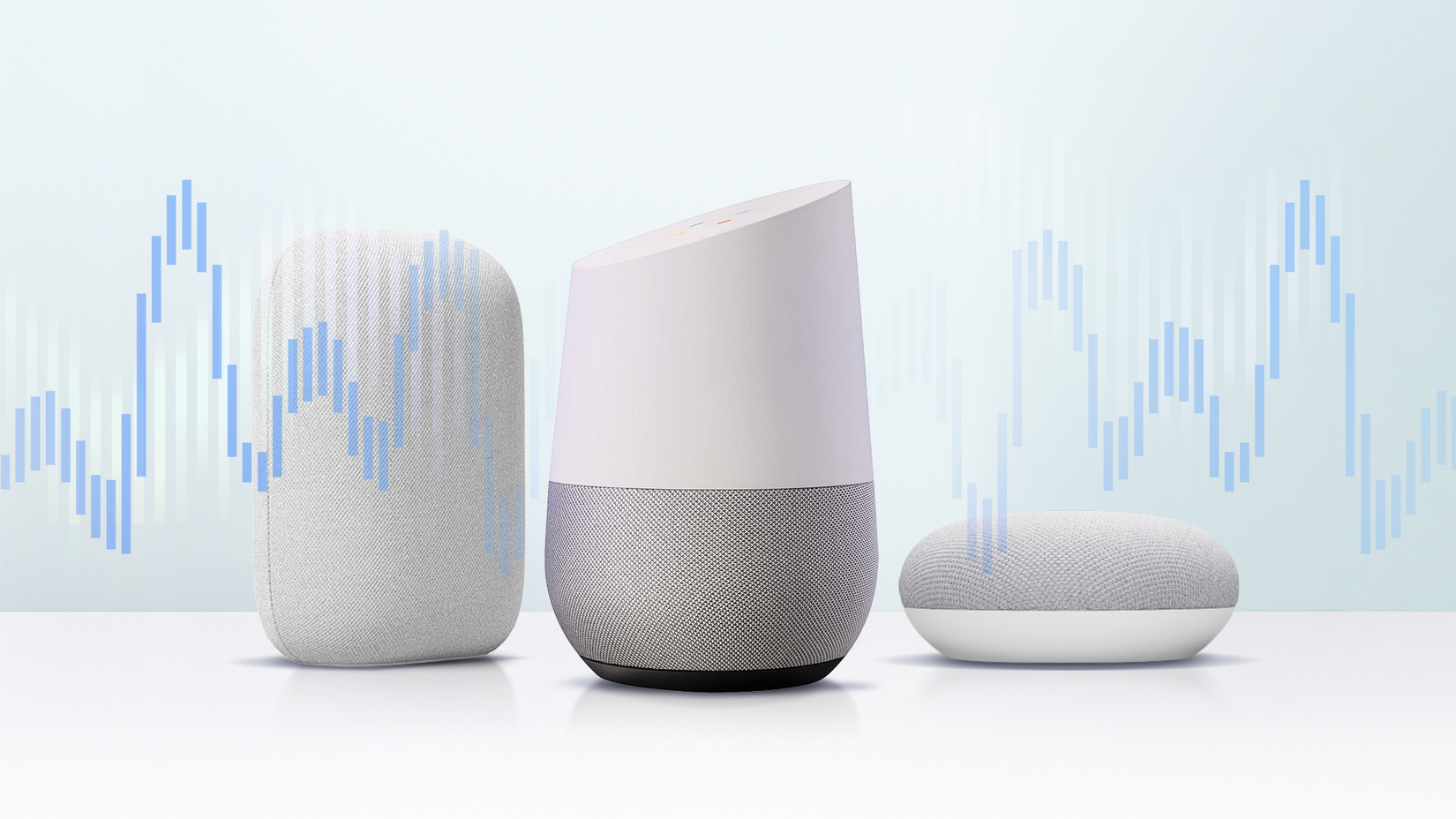
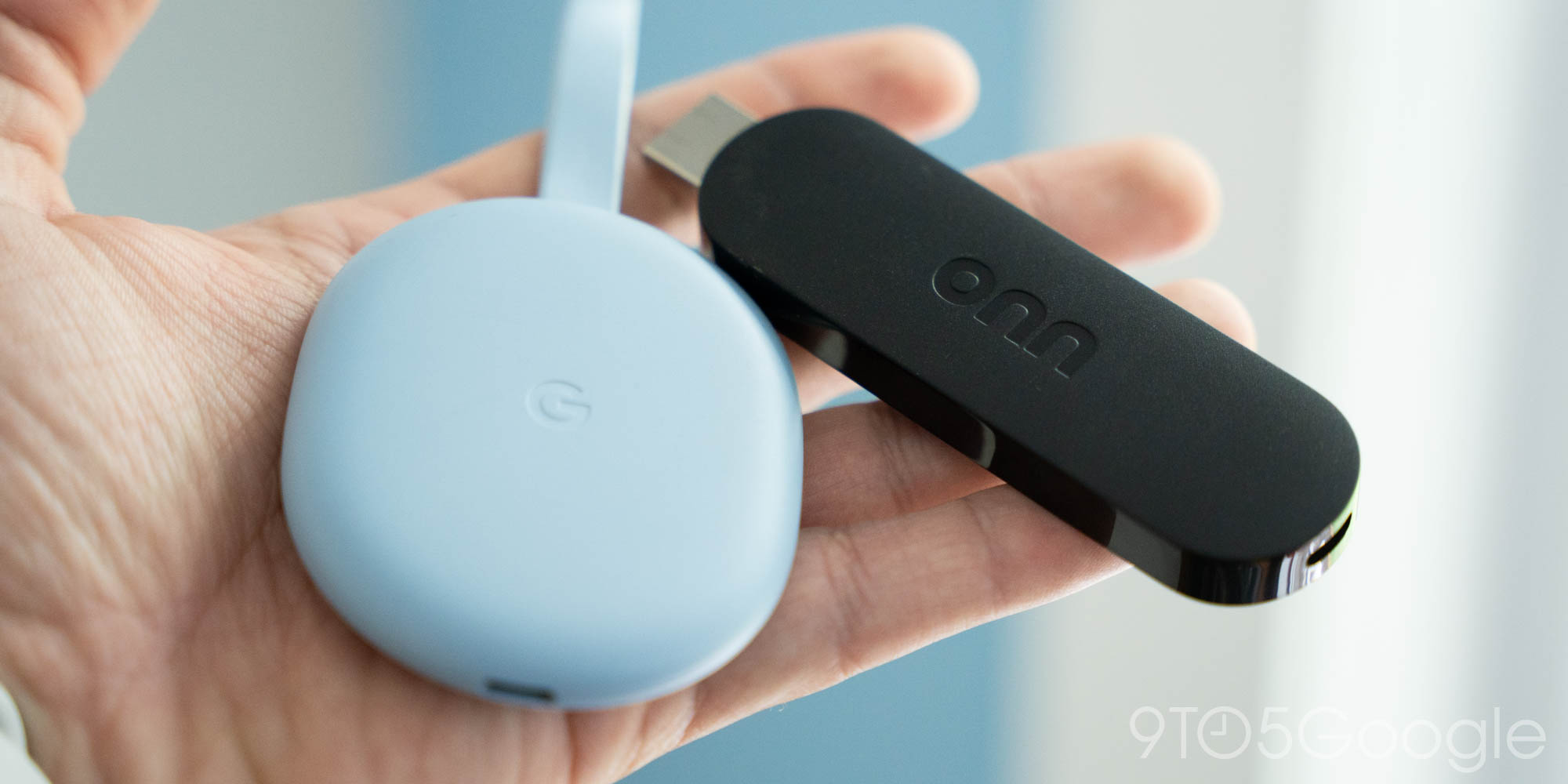
Many Nest speakers can act as a Bluetooth speaker for your TV. You do not cast video, but you move the TV audio to the speaker. If your main goal in How To Connect Google Home To TV Without Chromecast? is better sound, this is simple and cheap.
Steps:
- In the Google Home app, open your speaker. Tap Settings. Tap Audio. Tap Paired Bluetooth devices. Tap Enable pairing mode.
- On your TV, open Bluetooth settings. Find your speaker. Pair it.
- Set your TV’s audio output to Bluetooth.
What to expect:
- Audio lag is small on most TVs, but it can vary. Use your TV’s lip‑sync setting if needed.
- Voice commands control the speaker volume. They do not control TV apps.
Source: gabinetedelaorden.com
Method 5: Use a smart plug and HDMI‑CEC for power control
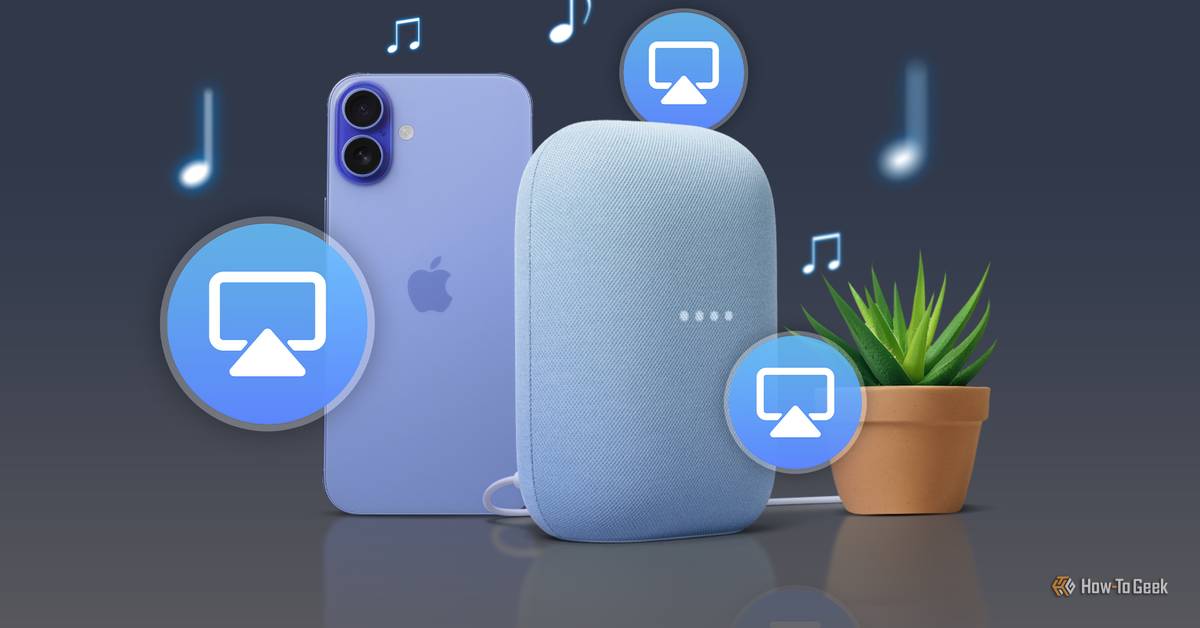
This is a light‑touch method. Use a smart plug to power the TV and let HDMI‑CEC wake devices over HDMI. It will not open Netflix by voice, but it can handle power. It is a budget path in the mix of How to Connect Google Home To TV Without Chromecast?.
Steps:
- Plug the TV into a smart plug that works with Google Home.
- In your TV settings, enable “Power on after power loss” and HDMI‑CEC.
- In Google Home, name the plug “Living Room TV Power.”
- Say, “Hey Google, turn on Living Room TV Power.”
Cautions:
- Hard power cuts can reduce standby features. Avoid frequent power cycles.
- Many TVs resume the last input on power restore. Check your model’s settings.
Source: missionbiblefellowship.com
Advanced: Use Home Assistant as a bridge
For power users, Home Assistant can expose your TV to Google Assistant through Nabu Casa. You can control Android TV via ADB, or some brands via local APIs. This is the most flexible path to solve How to Connect Google Home To TV Without Chromecast? If you like tinkering.
High‑level steps:
- Install Home Assistant on a Raspberry Pi or a small PC.
- Add the Android TV or TV brand integration in Home Assistant.
- Subscribe to the cloud integration or set up the Google Assistant bridge.
- Expose TV entities to Google Home. Create scripts for app launch and inputs.
Why I like it:
- Local control is fast and private.
- You can build scenes that set lights, inputs, and sound with one phrase.
What to know:
- This needs time and some comfort with networks.
- Not all TV brands offer full APIs. Test core functions first.

Source: americanmusicabroad.com
Troubleshooting and pro tips
If voice control fails, start simple. Most issues are names, networks, or old firmware. These quick checks have fixed most cases for my clients who asked How To Connect Google Home To TV without Chromecast?.
Try this:
- Reboot the TV, box, and router.
- Make sure the phone, speaker, and TV are on the same Wi‑Fi band.
- Shorten the TV’s name. Avoid special characters.
- Re‑link the partner service in Google Home under Works with Google.
- Update firmware for the TV, Roku, or IR hub.
- Test commands in the partner app first, then in Google Home.

Source: nearlandmx.com
Voice commands you can use right away
Clear commands help Google understand you. Use the device name at the end.
Useful phrases:
- “Hey Google, turn on Living Room TV.”
- “Hey Google, open YouTube on Living Room TV.”
- “Hey Google, play Stranger Things on Roku.”
- “Hey Google, switch input to HDMI 1 on TV.”
- “Hey Google, volume 15 on TV.”
- “Hey Google, pause the TV.”
Tip:
- If you have more than one TV, set the default TVs for each speaker in the Google Home app. Then you can just say, “Turn on the TV.”
Cost and decision guide
Pick the method that fits your setup and goals. Here is how I advise clients who ask How To Connect Google Home To TV without Chromecast?.
Best for most people:
- Roku link: Easy setup, low cost, wide app support.
Best for app control:
- Android TV or Google TV: Smooth app launch and playback control.
Best for older TVs:
- IR hub: Power, volume, inputs on almost any set.
Best for better sound:
- Bluetooth speaker pairing: Simple audio upgrade.
Best for tinkerers:
- Home Assistant bridge: Most control, most work.
Frequently Asked Questions on How To Connect Google Home To TV Without Chromecast?
Can I control Netflix without Chromecast?
Yes, with Roku or Google TV, you can launch Netflix by voice. IR hubs cannot open apps, but they can power, change inputs, and set volume.
Will this work if my TV is very old?
Yes, an IR blaster or smart remote hub can control most older TVs. You will not get app control, but power and volume will work.
Can Google Home turn my TV on and off?
Yes. With Roku, Android TV, IR hubs, or a smart plug, on and off work. HDMI‑CEC helps the TV and devices start together.
Can I use Apple TV with Google Home?
There is no direct support. You can control power and inputs with an IR hub or use an advanced Home Assistant setup.
Is Bluetooth audio from my TV to Nest speakers laggy?
It can be. Many TVs offer a lip‑sync setting that helps. Pairing quality also depends on Bluetooth versions and distance.
Why does Google Home not find my TV?
Devices must be on the same Wi‑Fi and use the same Google account. Reboot, update firmware, and re‑link the partner service.
Do I need to enable any settings on my TV?
Yes. Enable HDMI‑CEC, allow external control or mobile control if your TV offers it, and turn on power after a blackout if using a smart plug.
Conclusion
You do not need a Chromecast to enjoy hands‑free TV control. With Roku or Google TV, setup takes minutes. With an IR hub, even old sets gain power and input control. For audio, Bluetooth pairing is quick. For full custom scenes, Home Assistant unlocks more.
Pick one method and test the basics today. Start with the device you already own. If it falls short, add a low‑cost hub or a Roku. Ready to go deeper? Explore more guides, subscribe for updates, or leave a comment with your setup, and I will help you dial it in.

One Comment